
Zones can also be used to split pointclouds. This allows a Websocket client to only receive a part of a pointcloud, thus reducing the bandwidth required.
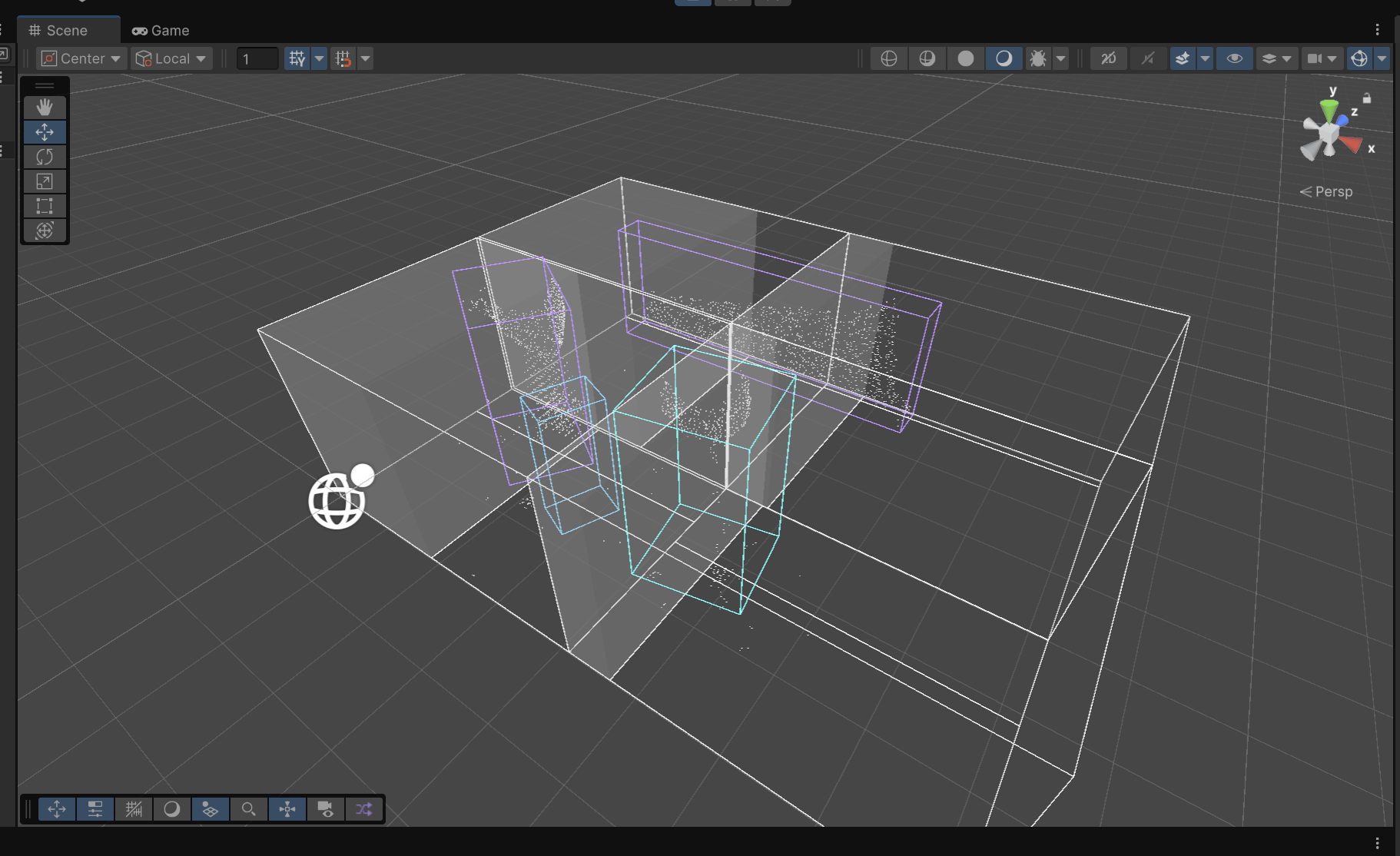
We can see in the example below that the cluster (position / size etc…) of the detected object is received for the whole scene, but the pointcloud only appears in the left section.
This setup seems to be the most common one, as the clusters data is pretty lightweight (without its pointcloud). Then the client only requests the zone(s) for which it wants to receive pointclouds.
For now, this feature is in preview, and is only supported with the Unity Client, with an Augmenta Server running a 1.5.0 version of Augmenta.
The example Unity project is available here: Augmenta-tech/AugmentaUnityWebsocketDemo: Unity Client for Augmenta (Pleiades)
Augmenta Server config
Create global tags
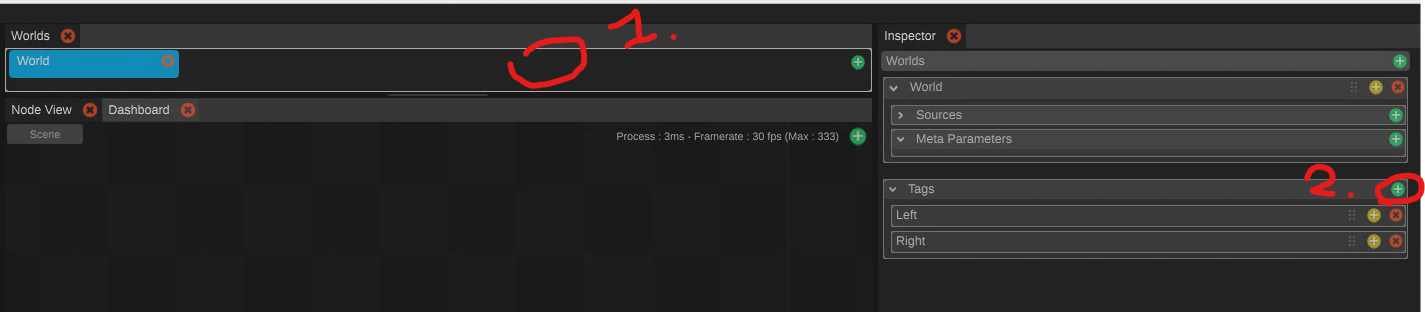
- click on the Worlds Manager (the container of the Worlds)
- In the inspector, add as many tags in the “Tags” container as you will create zones
Add zones
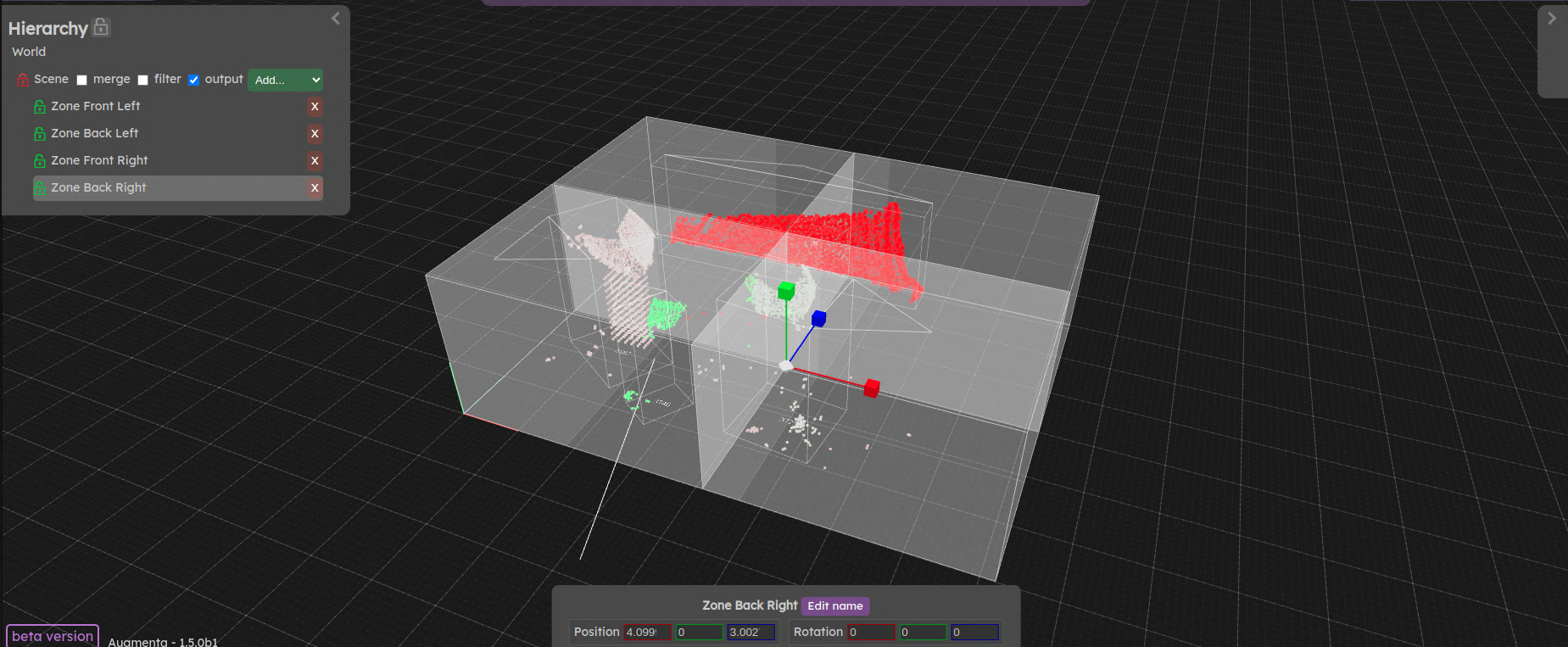
You can then use the web interface to create and configure the zones that will segment your space. You can go to the “Zone” menu in the web interface to configure this.
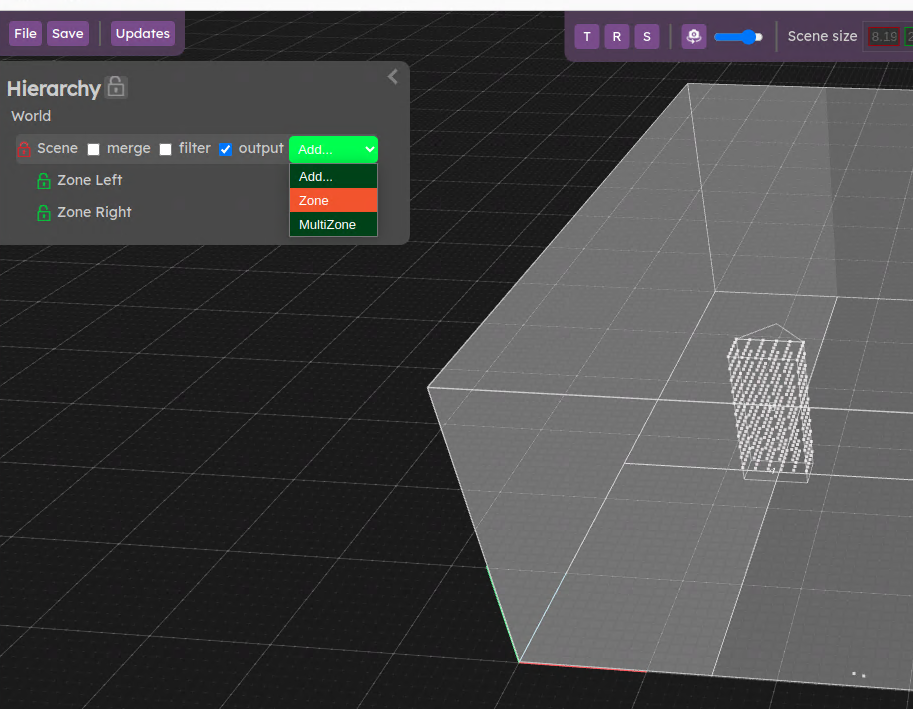
- At the top of the hierarchy, use the “Add” dropdown to add a Zone
- You can then select the newly added Zone and move / rotate / resize using the gizmo
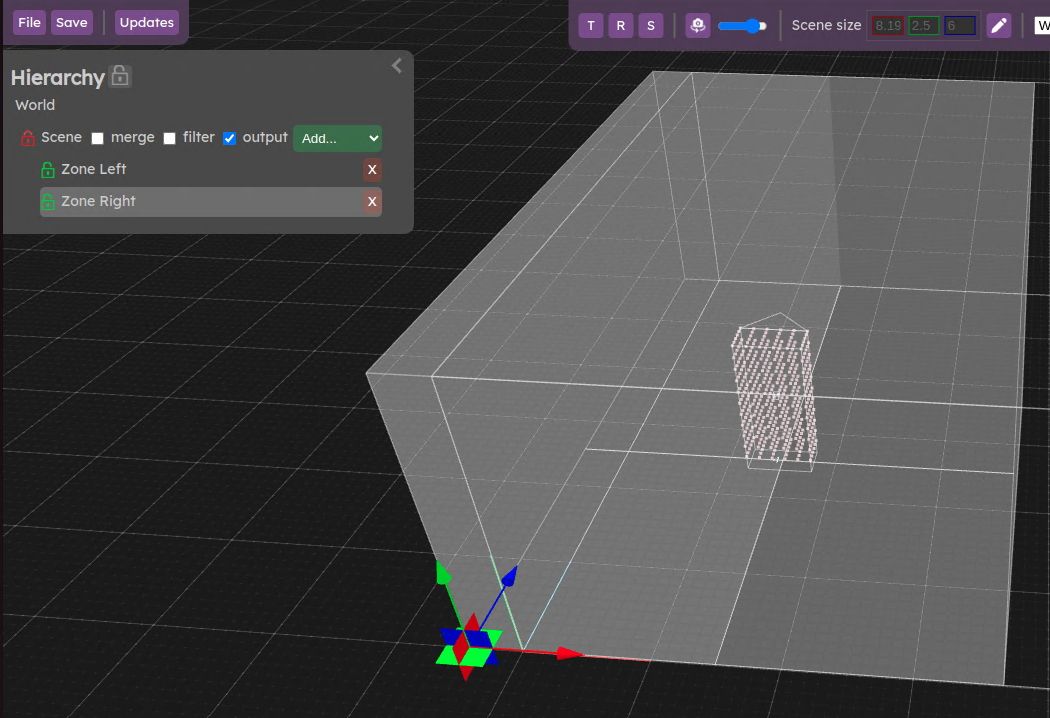
Create all your zones this way.
Assign tags to zones
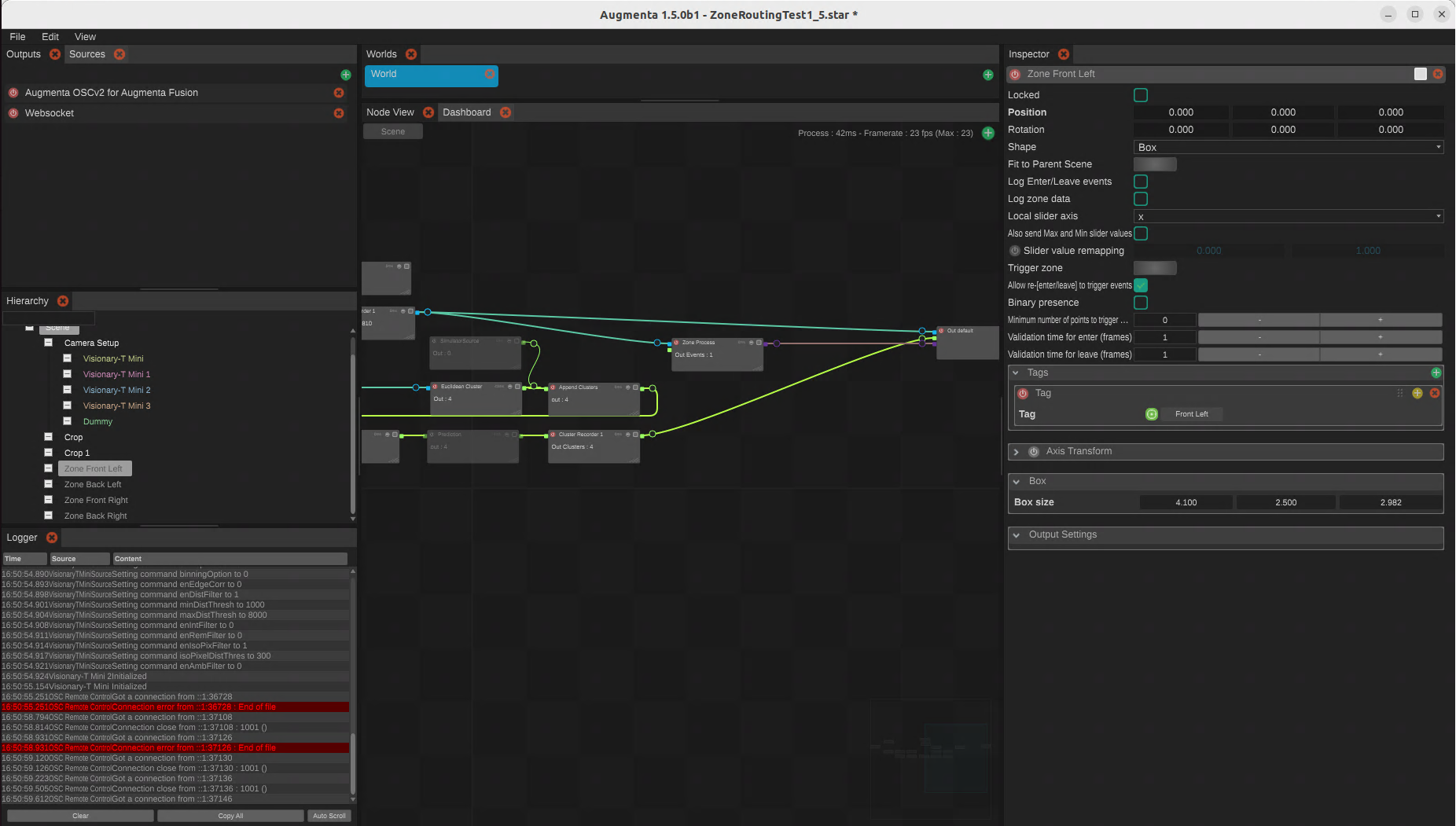
You will have to go back to the backend interface to assign tags to zones.
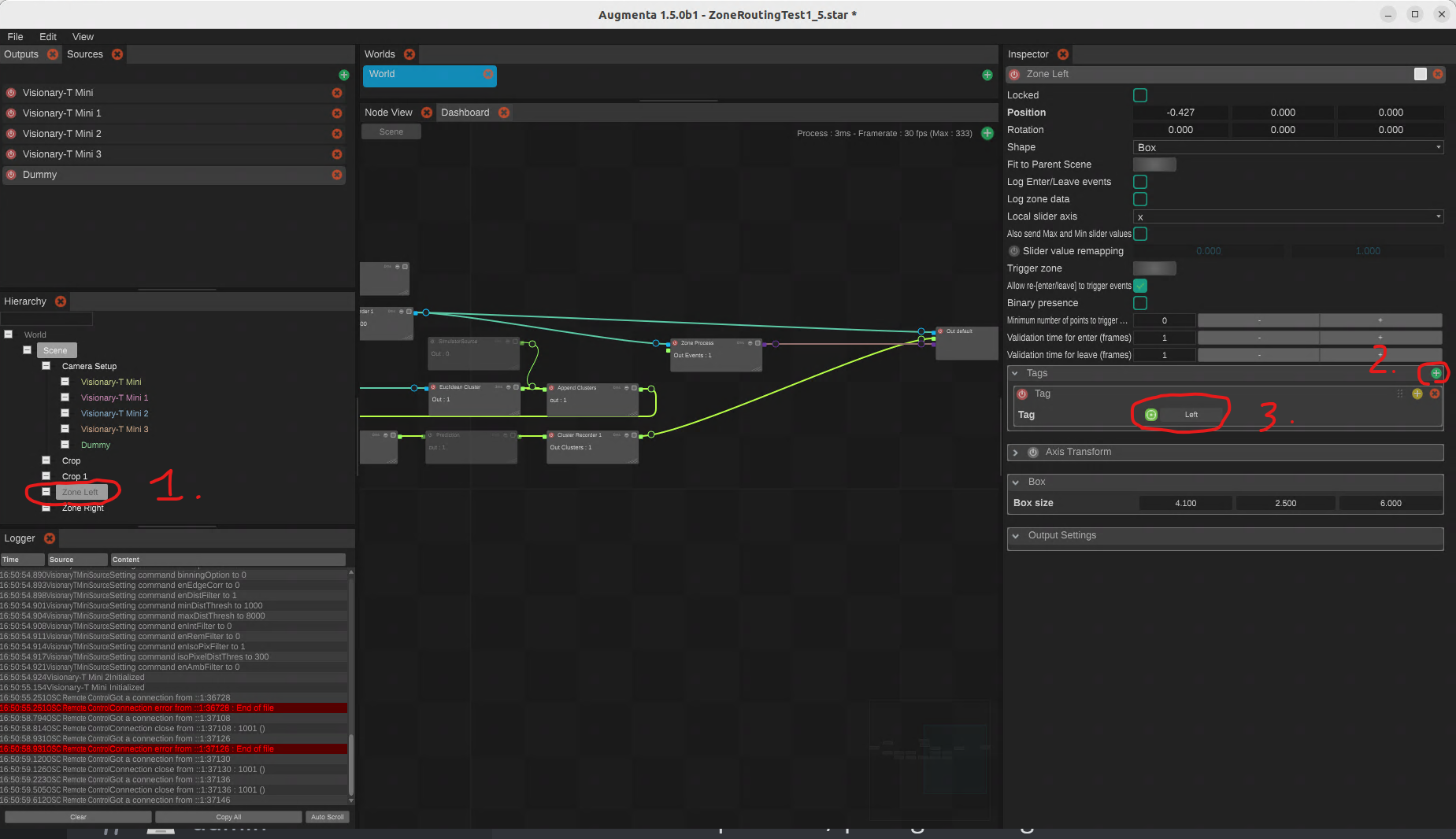
To assign tags to zone, you will have to repeat the steps below for each zone
- Select the zone in the hierarchy
- In the inspector, you can add a tag to the currently selected zone
- After the tag item has been added, ou will have to select the actual tag you want to use
Create a Websocket output
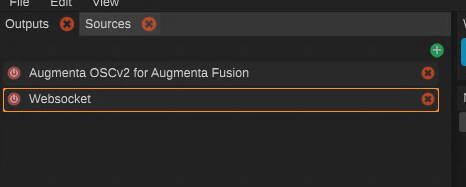
Make sure to have a Websocket output in your outputs, and to write down the port it is assigned to.
You are done with the server configuration !
Here’s an example setup with 4 zones.
Unity client config
Those steps need to be individually performed for each client that will need to get different data.
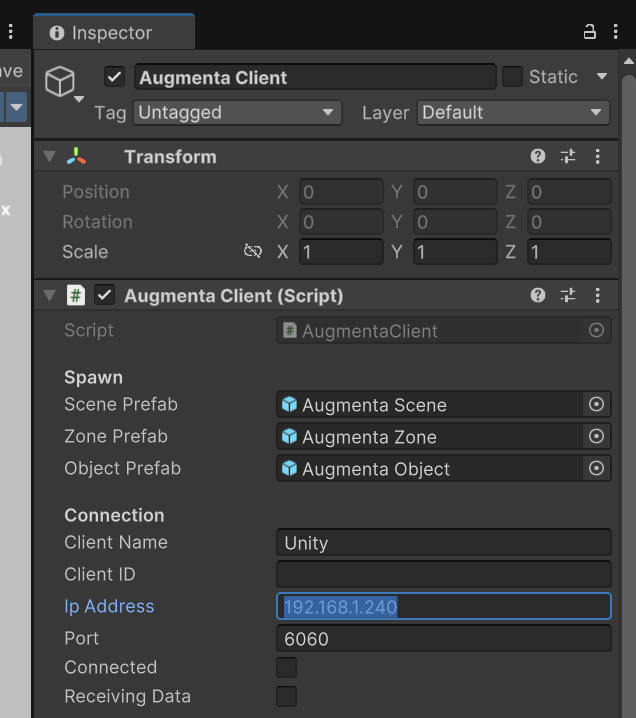
Set IP address and port of the Augmenta server in your AugmentaClient object.
Then make sure to only tick the data you are interested in. Here we want to get the cluster data, but not its point. We also want to get some Zone Points.
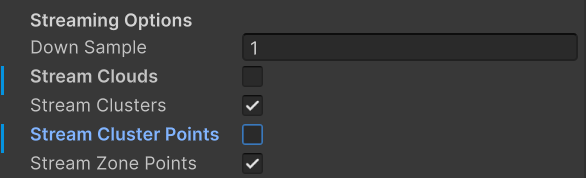
By default without more configuration, you will get the clusters for the whole scene + all the zone points. We will specify which zones we want in the next step.
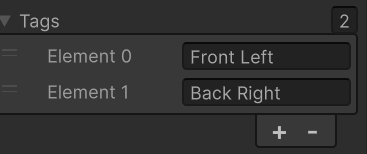
The last step is to choose which zones we want to get the data from, by specifying the tags we are interested in, in the client config.
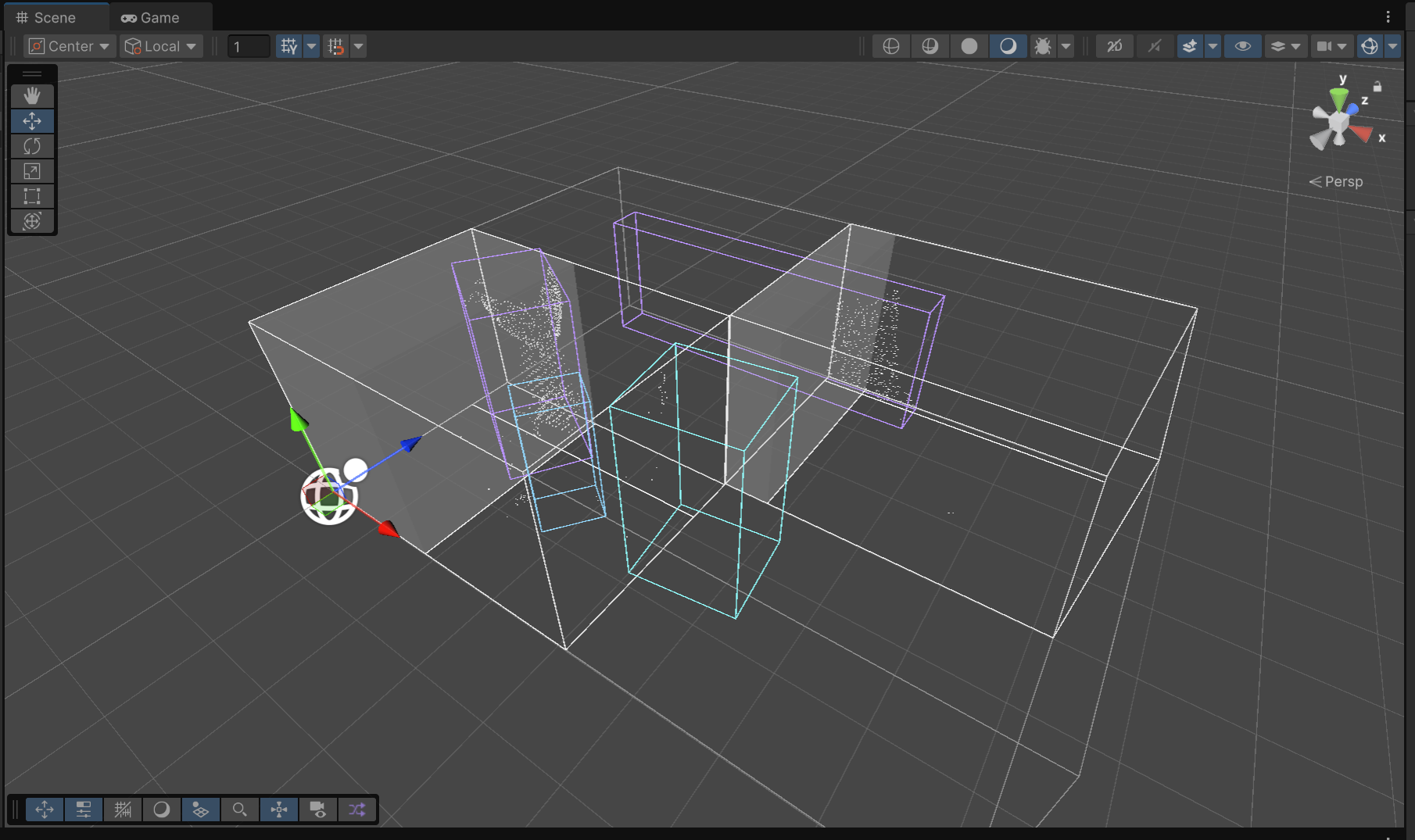
Here we only get the 2 zones we requested the data for + the clusters data of the whole scene