👋
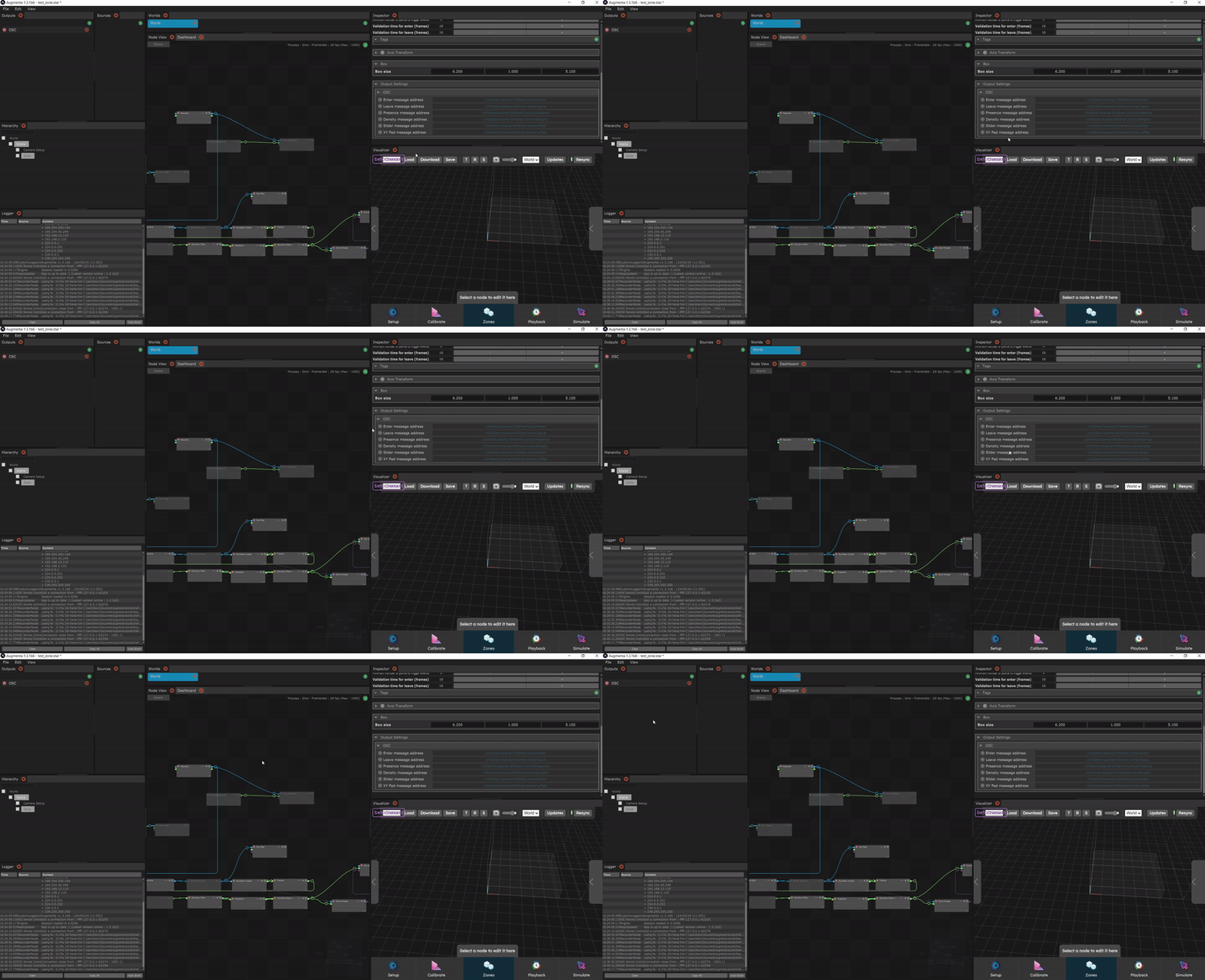
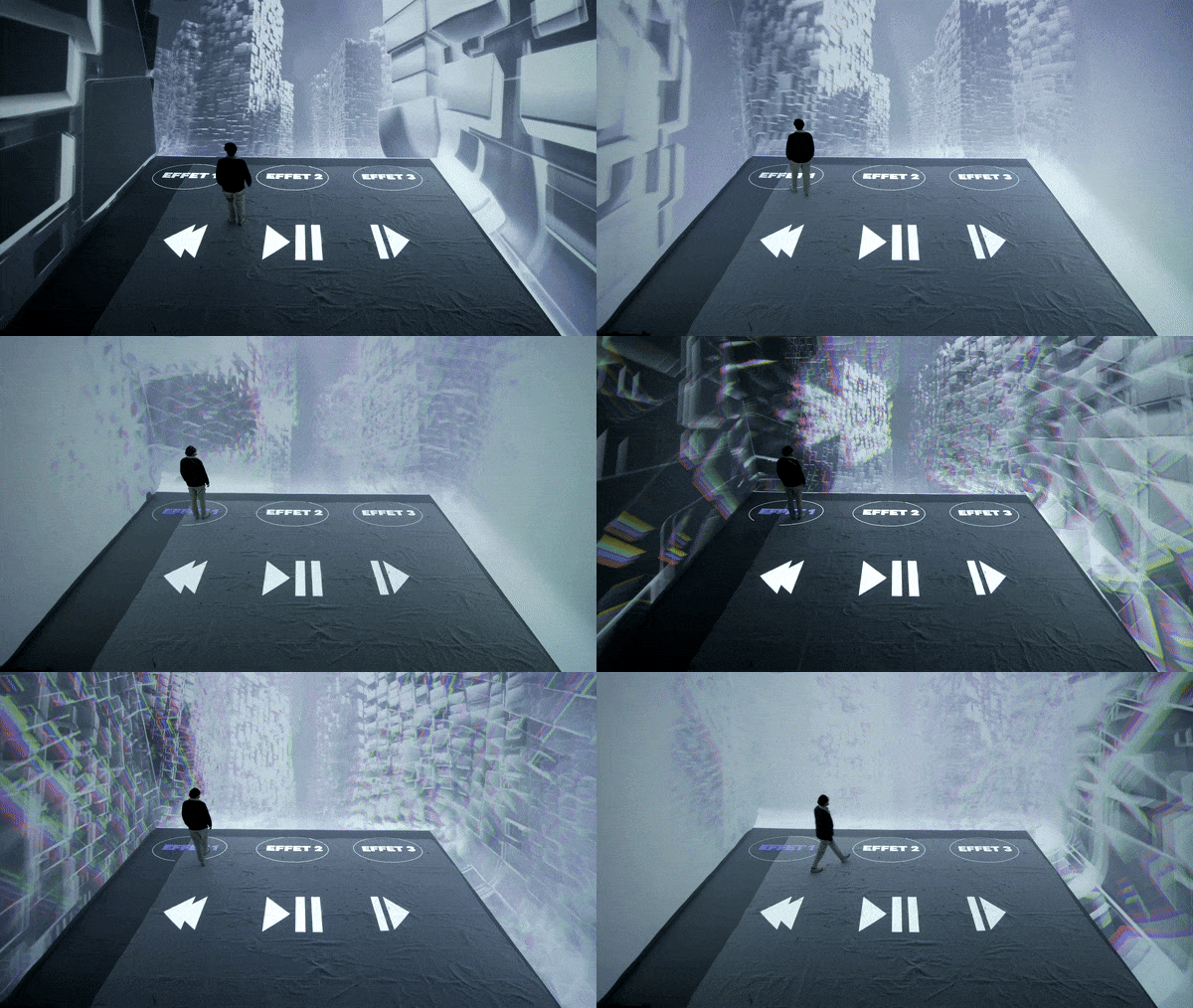
Zones are volumes within the scene that can be used to trigger actions or control parameters in your creative software or device.
There are different types of controls, like triggers, sliders, distance, XYpad. It’s just like having a midi controller in space sending to any osc address, with a body shape precision.
⚠️
This feature is currently in beta and is a work and progress, the interface can feel clunky and instability can happen. Also features and parameters are subject to change during the beta phase.
What is it ?
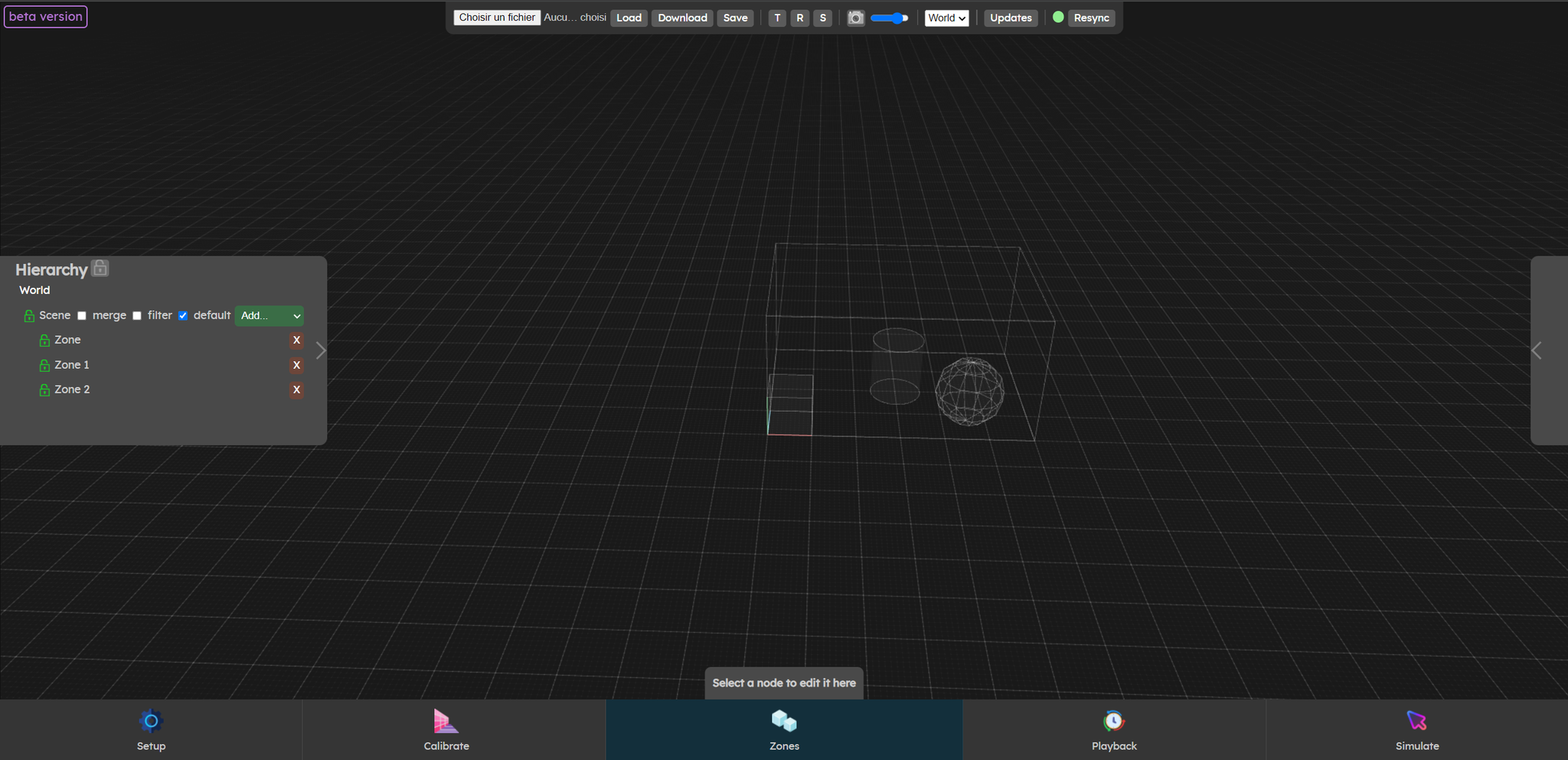
Zones are volumes within the scene that can be used to trigger actions or control parameters in your creative software or device.
Shapes
- Box
- Cylinder
- Sphere
Types
- Trigger
- Slider
- XY Pad
- Multi Zone
- Distance to center (Work in progress)
Outputs
- Websocket (compatible with Augmenta official plugins)
- OSC
- Midi (Work in progress)
Compatibility
- Official Augmenta plugins
- Unity
- Unreal (Work in progress)
- TouchDesigner
- Notch (Work in progress)
- vvvv
- Ableton Live
- AugmentaSDKs
- C++
- .NET
- OSC controllable software or equipment
- Resolume
- Madmapper
- Arduino
- Chataigne
- …. and a lot more !
- Midi enabled software or equipment
- Music instruments like synths
- Music software
- Signage equipment (Work in progress)
- Brightsign
- Waves systems
- Spinetix
Setup and configuration
Zone creation
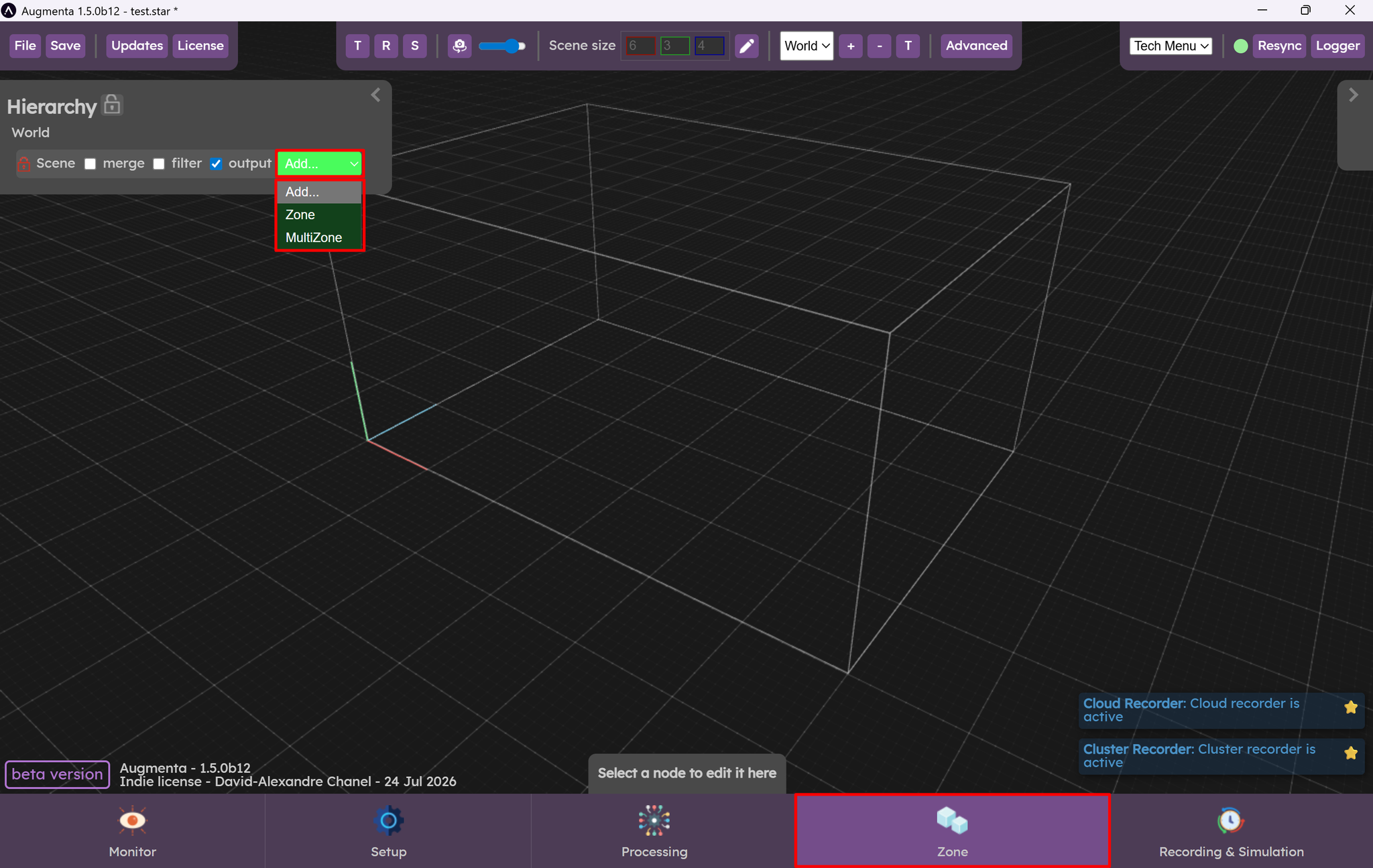
On the zone panel, click on Add to Add a Zone or a MultiZone.
MultiZone are matrix of zones, you can find more options in the advanced interface.
Zone manipulation
Moving, scaling, orienting
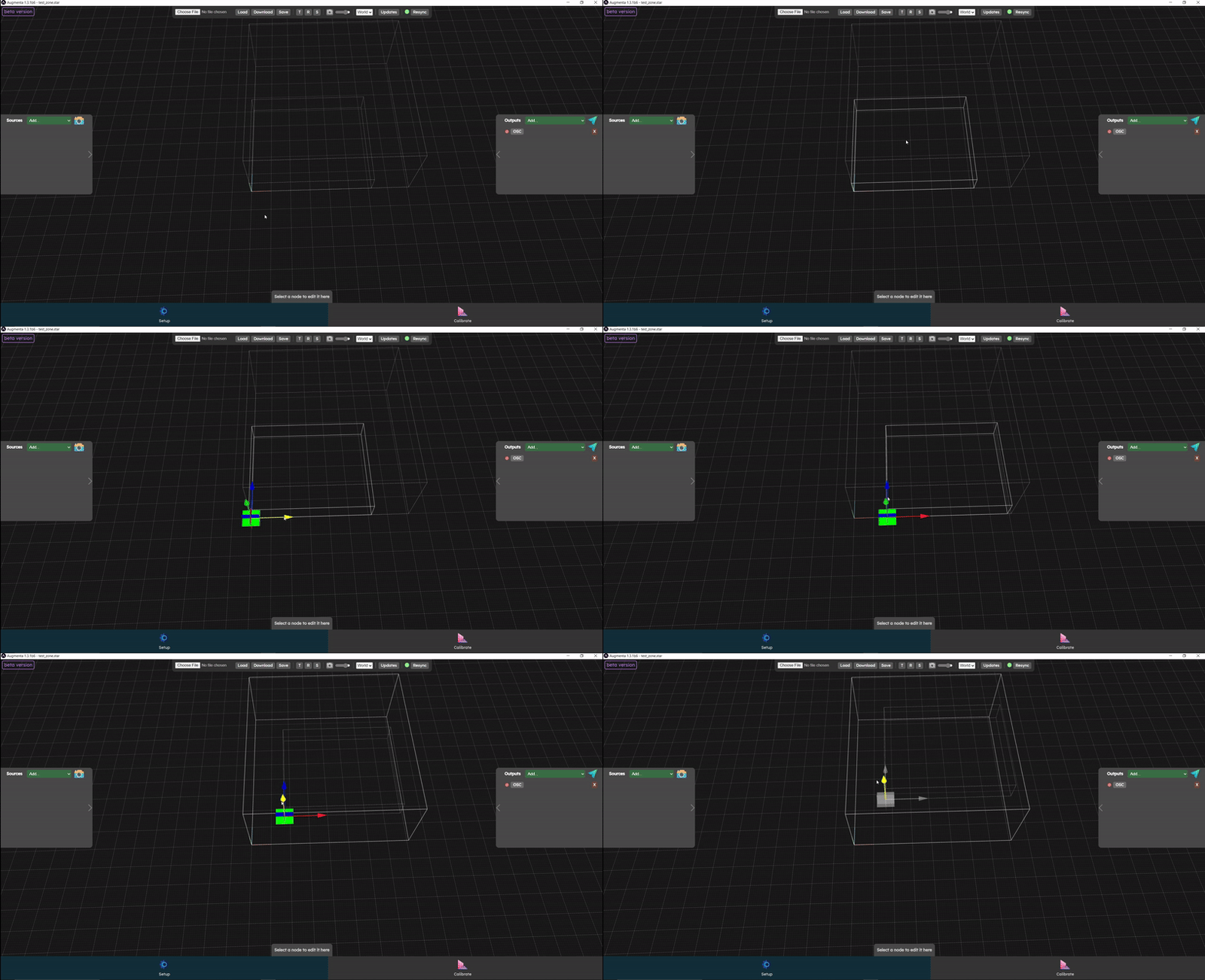
It is possible to change the size and position of zones directly on the web interface. You can click directly on the scene and change its position using the gizmo. To change rotation and size, simply click on “r” or “s” on the keyboard (or click on the corresponding buttons in the top bar) when the gizmo is displayed. To return to translation, click on the “t” key on the keyboard or on the “T” button in the top bar.
Renaming
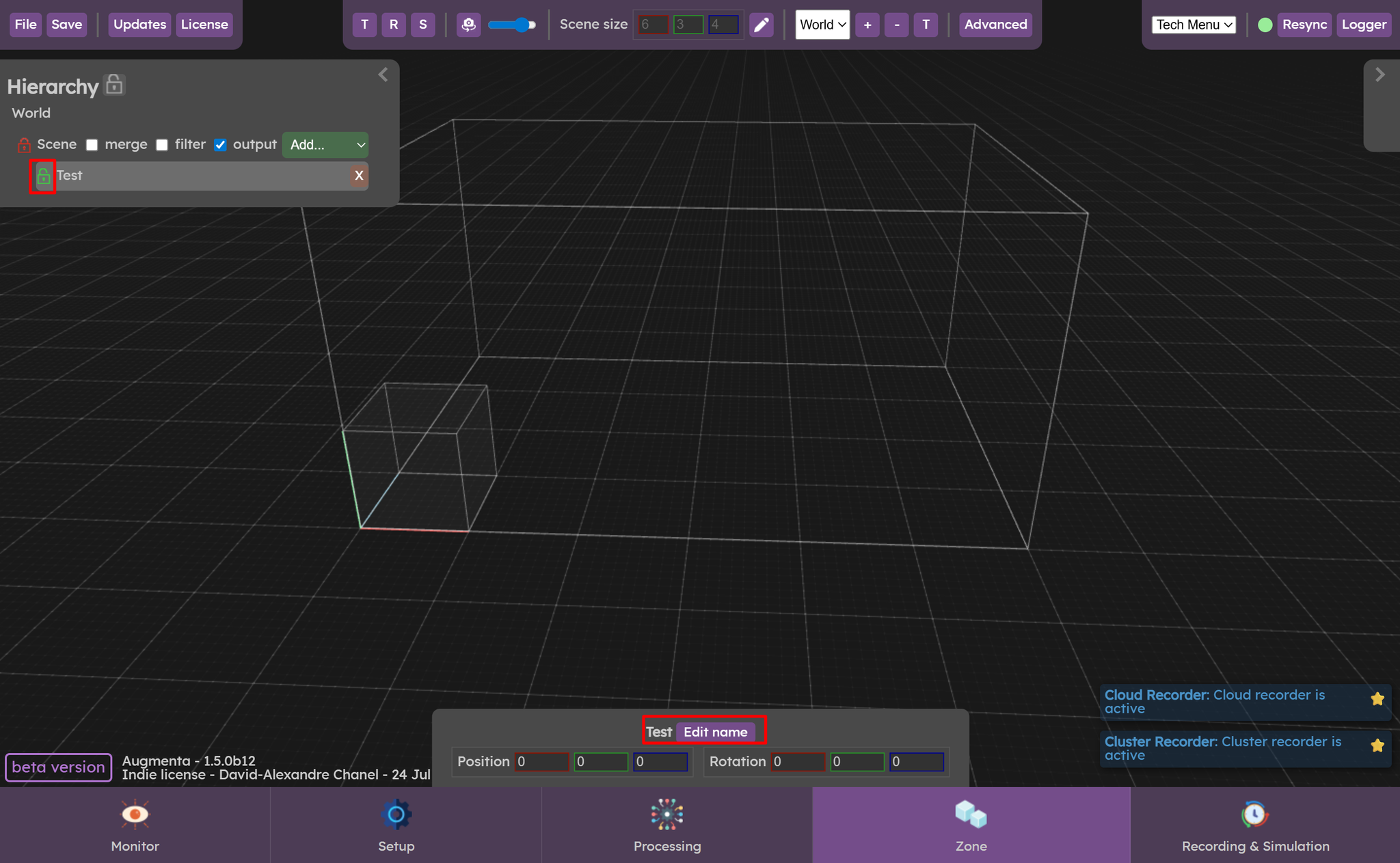
You can rename or lock the zone with this tools
Zone Output
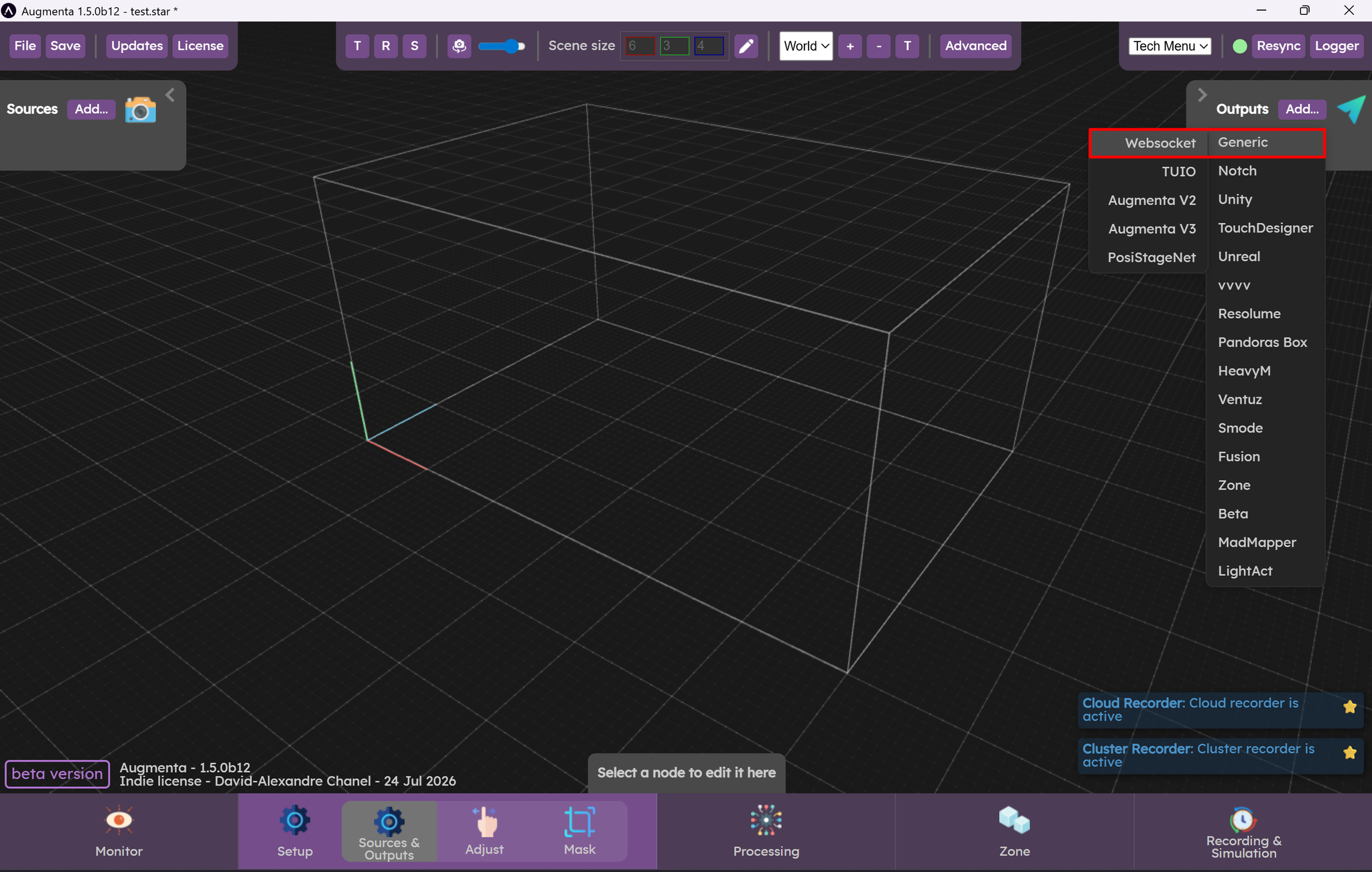
Websocket output
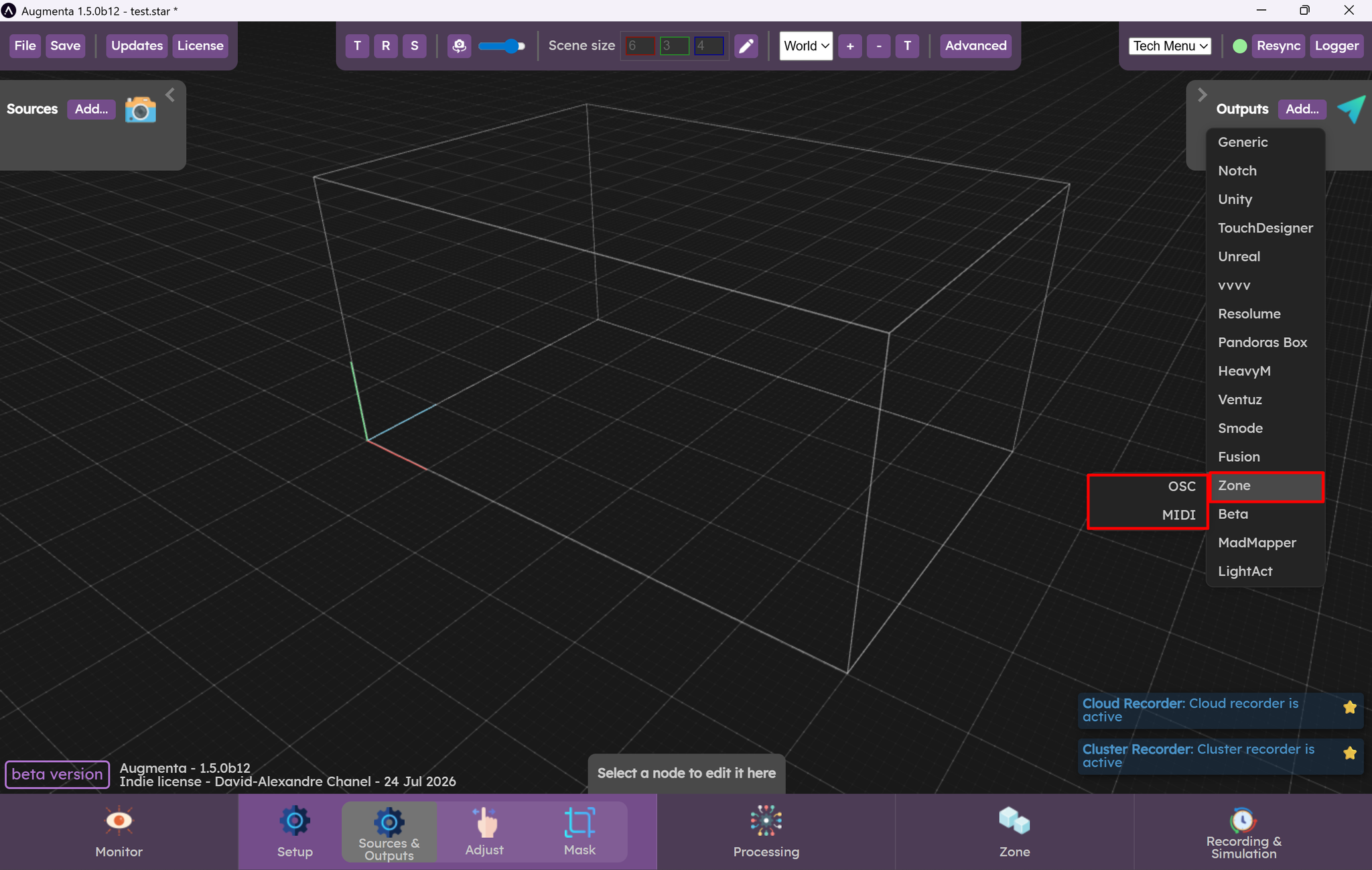
OSC and midi output
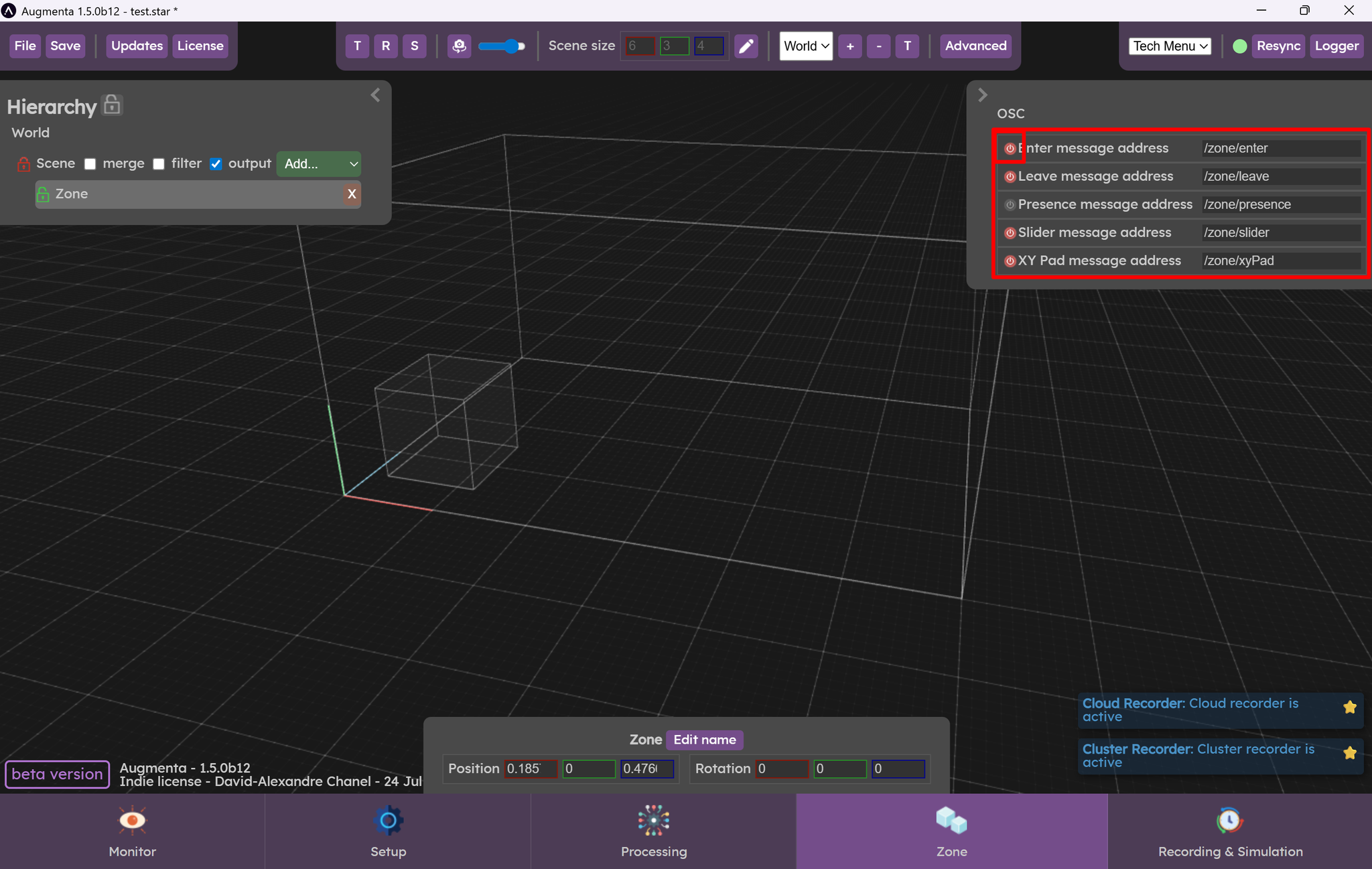
OSC Adress enabling/disabling and editing
⚠️
More options can be found in the advanced interface.
Known limitation : OSC address are sometimes incorrectly displayed in the interface in the 1.5beta version
Advanced interface

Zones can be also created in the advanced interface, where you can find more options.
Zone creation
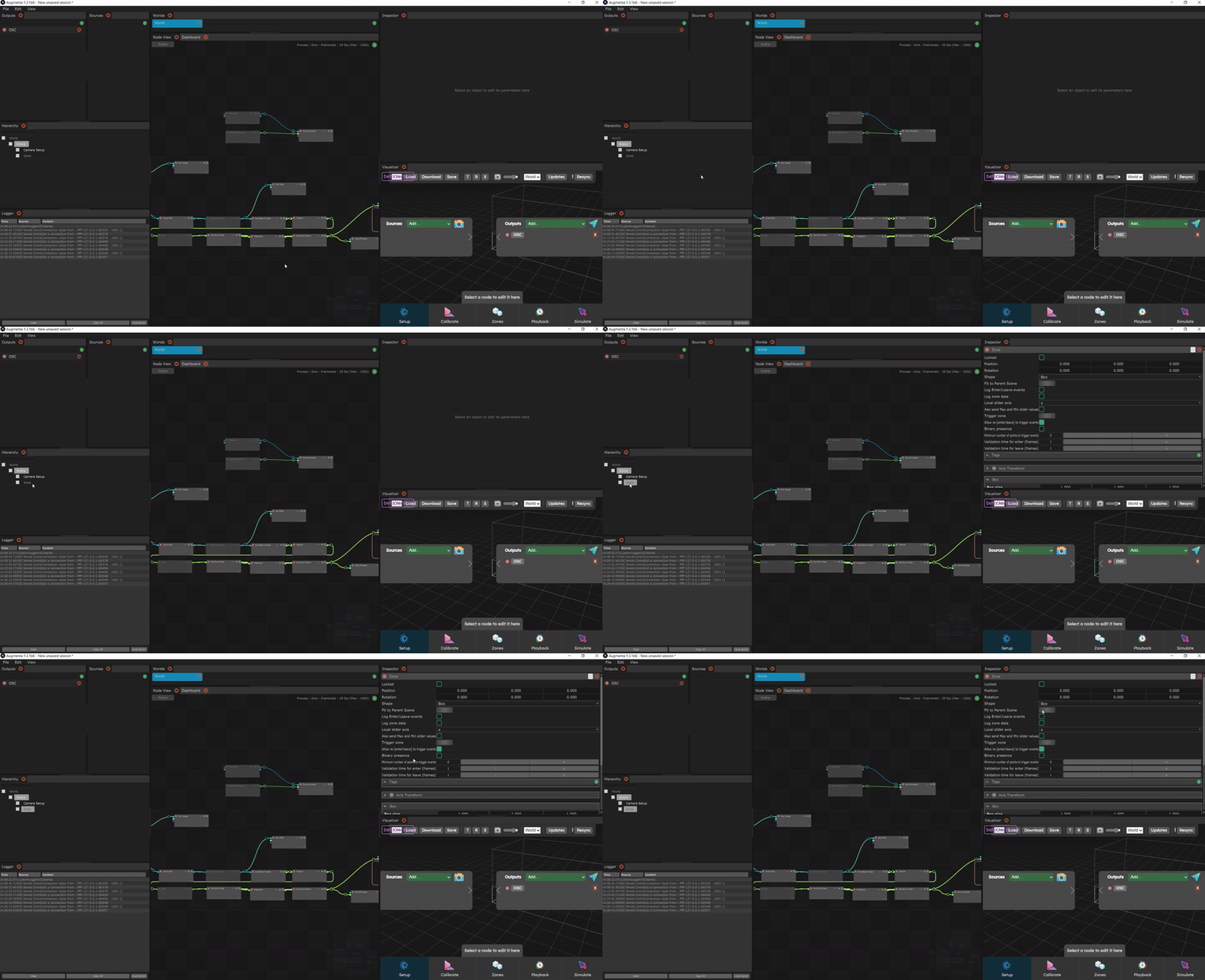
To create a zone in the scene, simply right-click on the scene in the hierarchy and click on zone.
Zone output
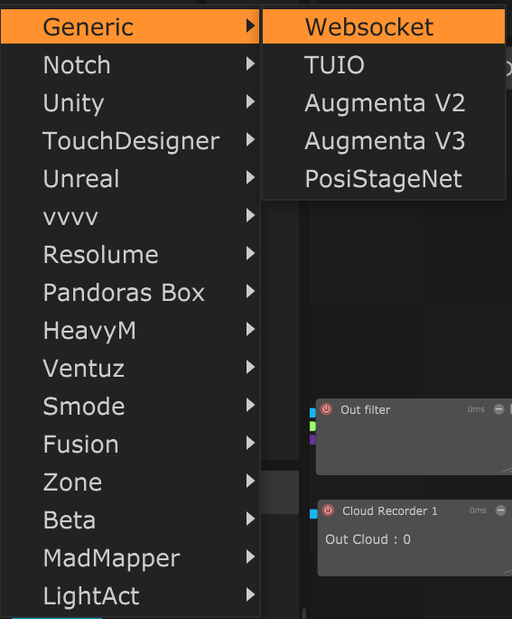
For the official plugins of Augmenta, you can use the usual Websocket output.
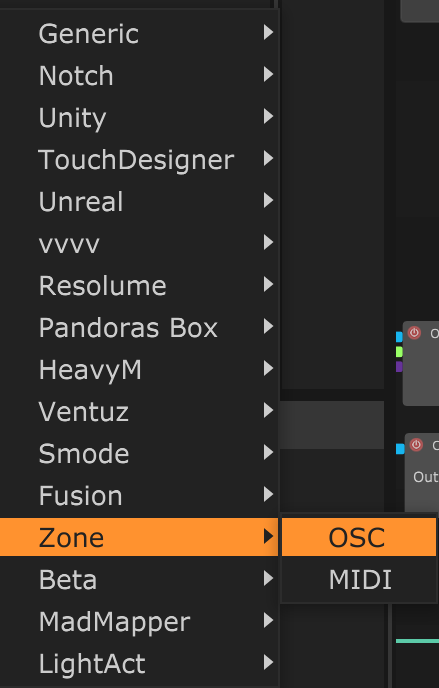
For the OSC and midi output, they can be found in a specific zone menu.
Zone Shape
There are 3 shapes available for the zones: boxes, cylinders and spheres. By default, when a zone is created, it is a box. You can change its shape by clicking on the corresponding zone and selecting another shape on the right in the “Shape” parameter.
Detection Parameters
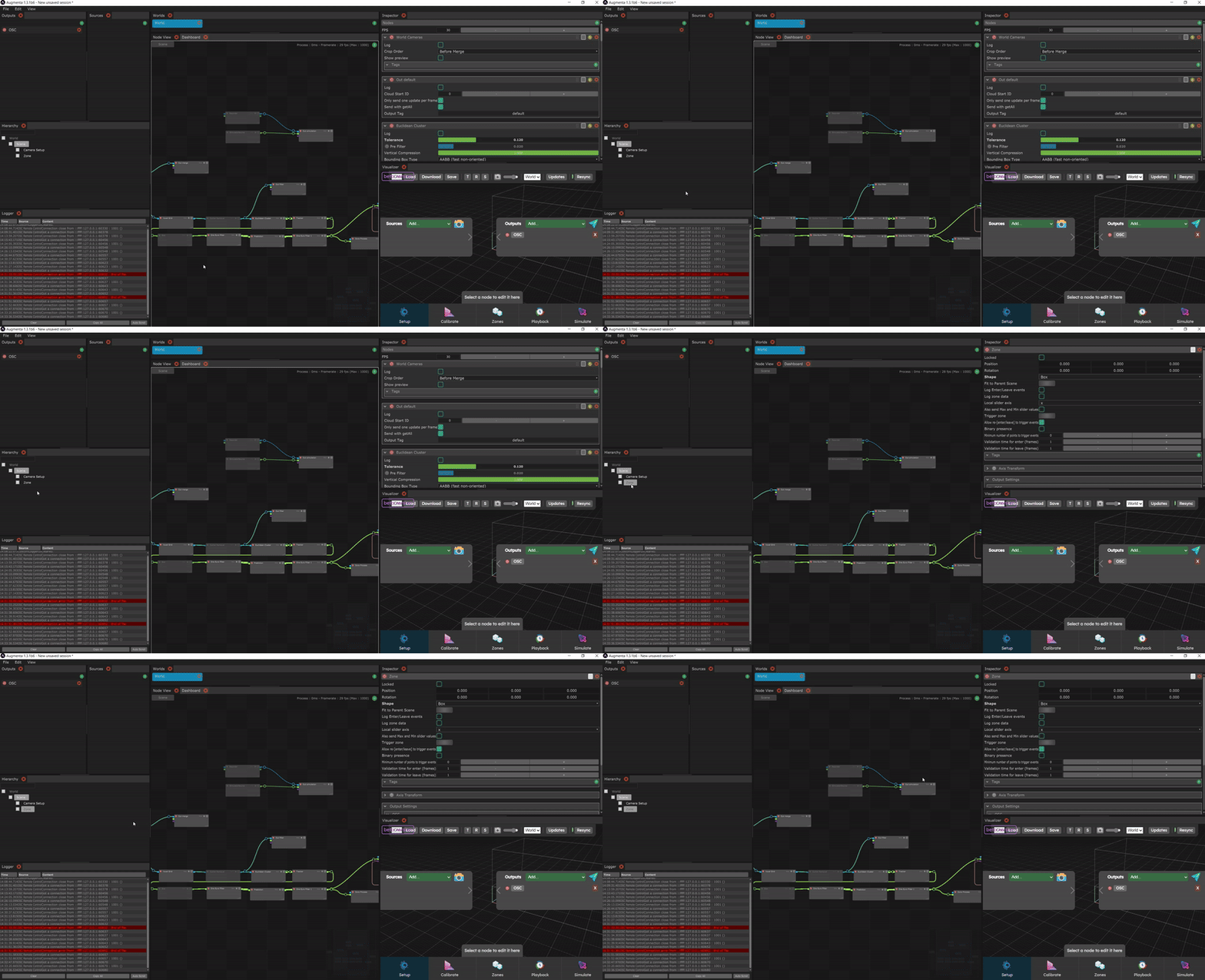
Zone “sensitivity” can be set. The more sensitive the zones, the faster they will detect an event and send an OSC message. It's not necessarily a good thing for a zone to be very sensitive, because when a person stands on the edge of the zone, it can detect a lot of enter and leave.
The parameter used to set sensitivity is “Minimum number of points to trigger events”. For example, if this parameter is set to 10, the event will be triggered only when 10 points of the point cloud are in the zone.
Zone Events
Several types of events can be sent as OSC messages. The messages are all customizable so that they can be received by the authoring software (for example, to change clips in Resolume).
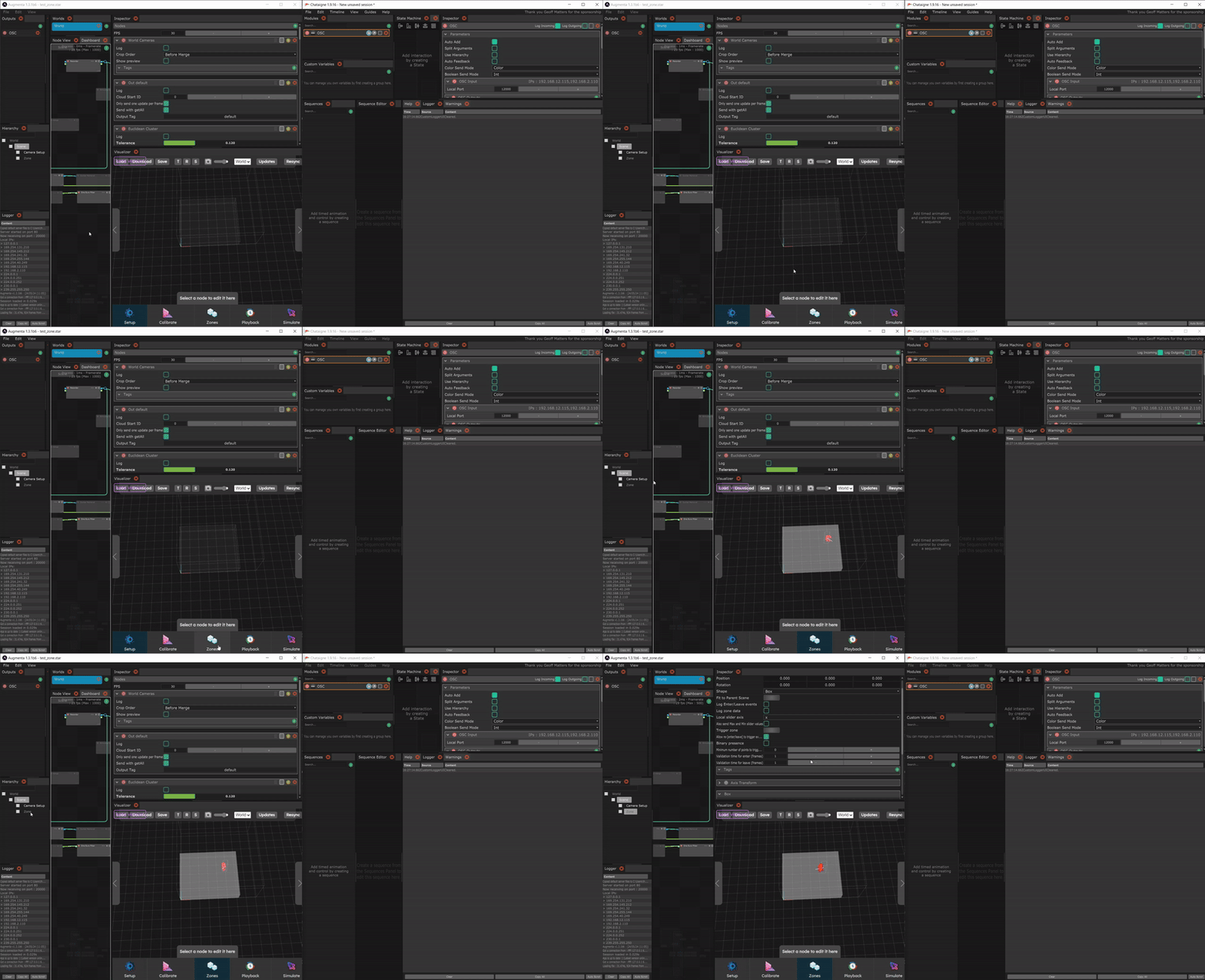
- Enter message: an empty message is sent each time a person enters the zone. The default OSC address is /children/scene/children/zone/enter (this can be changed like all the others). Several parameters are linked to this message.
- The first is the “Allow re-[enter/leave] to trigger events". If enabled, allows to send multiple enter (or leave) events for an already occupied zone
- “Validation time for enter (frames)” allows you to set a time in frames before a person entering the zone triggers the enter message. This parameter avoids receiving many enter messages when a person is at the zone boundary, for example, or when the cluster flashes.
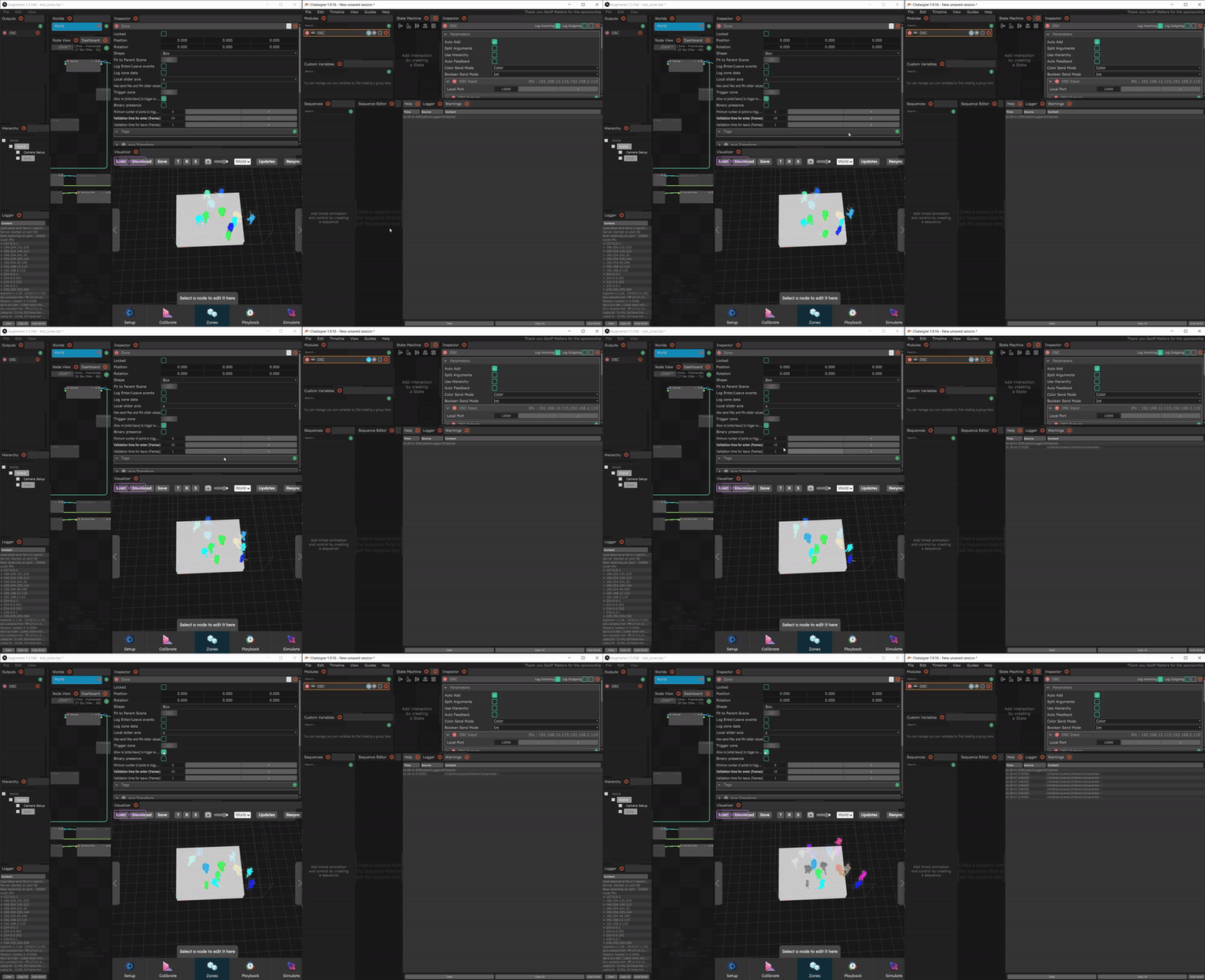
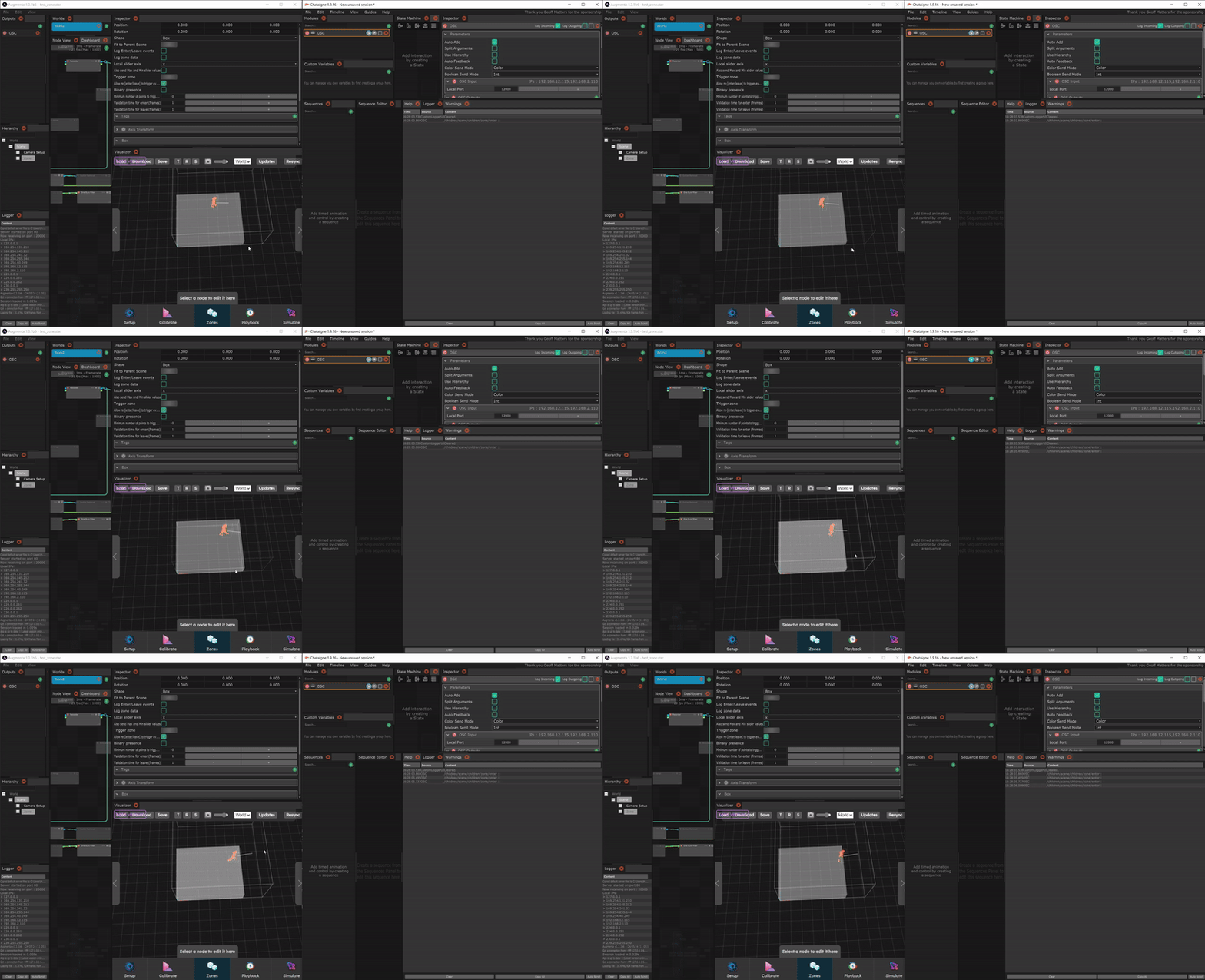
- Leave message: an empty message is sent each time a person leaves the zone. The default OSC address is /children/scene/children/zone/leave Several parameters are linked to this message.
- The first is the “Allow re-[enter/leave] to trigger events" (The same as for enter messages)
- “Validation time for leave (frames)” allows you to set a time in frames before a person leaving the zone triggers the leave message. This parameter avoids receiving many leave messages when a person is at the zone boundary, for example, or when the cluster flashes.
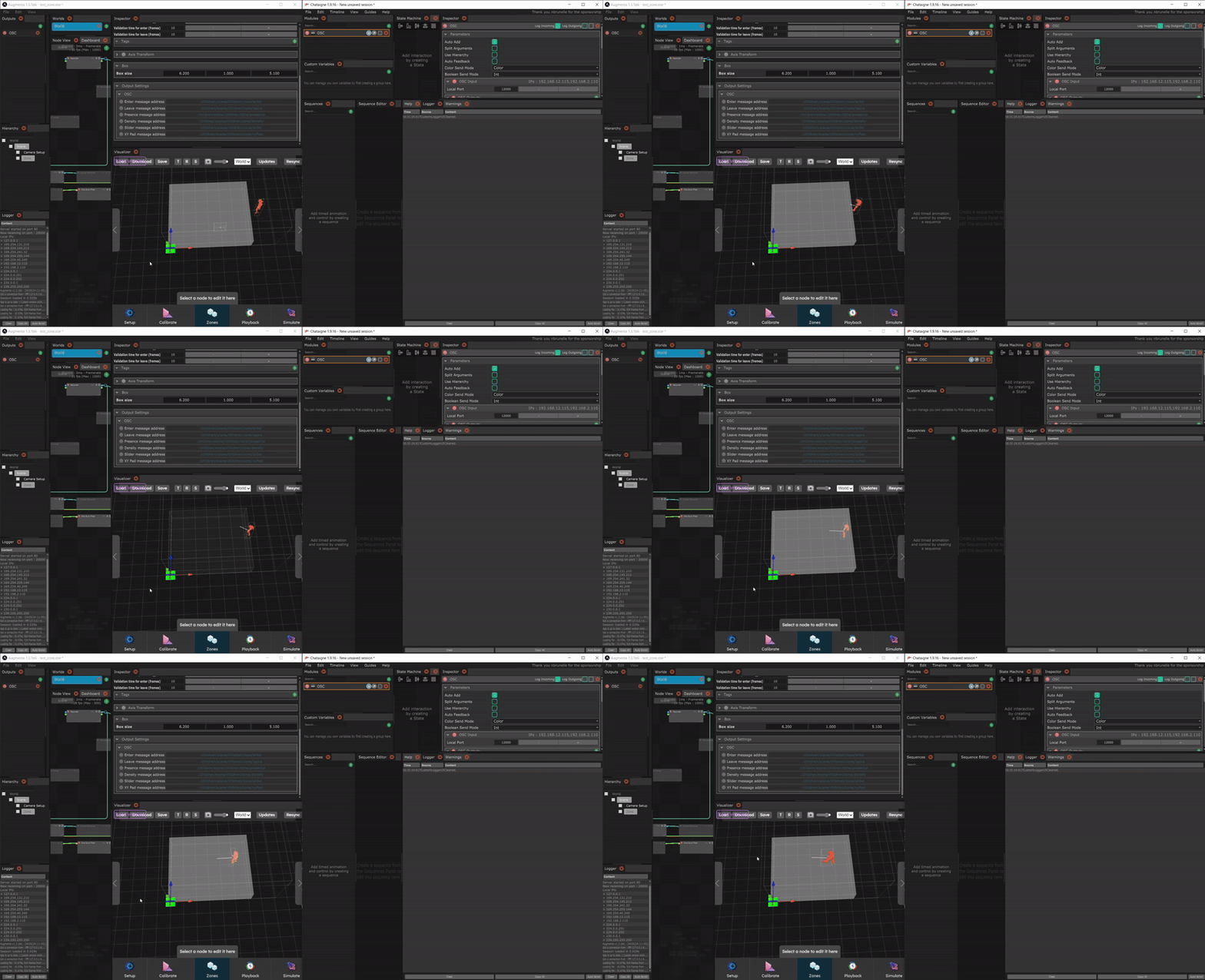
- Presence message: the number of people present is sent to each frame at the default address /children/scene/children/zone/presence.
- The “Binary Presence” parameter is used to send a binary (1 if at least one person is present in the zone, 0 otherwise) instead of the number of people.
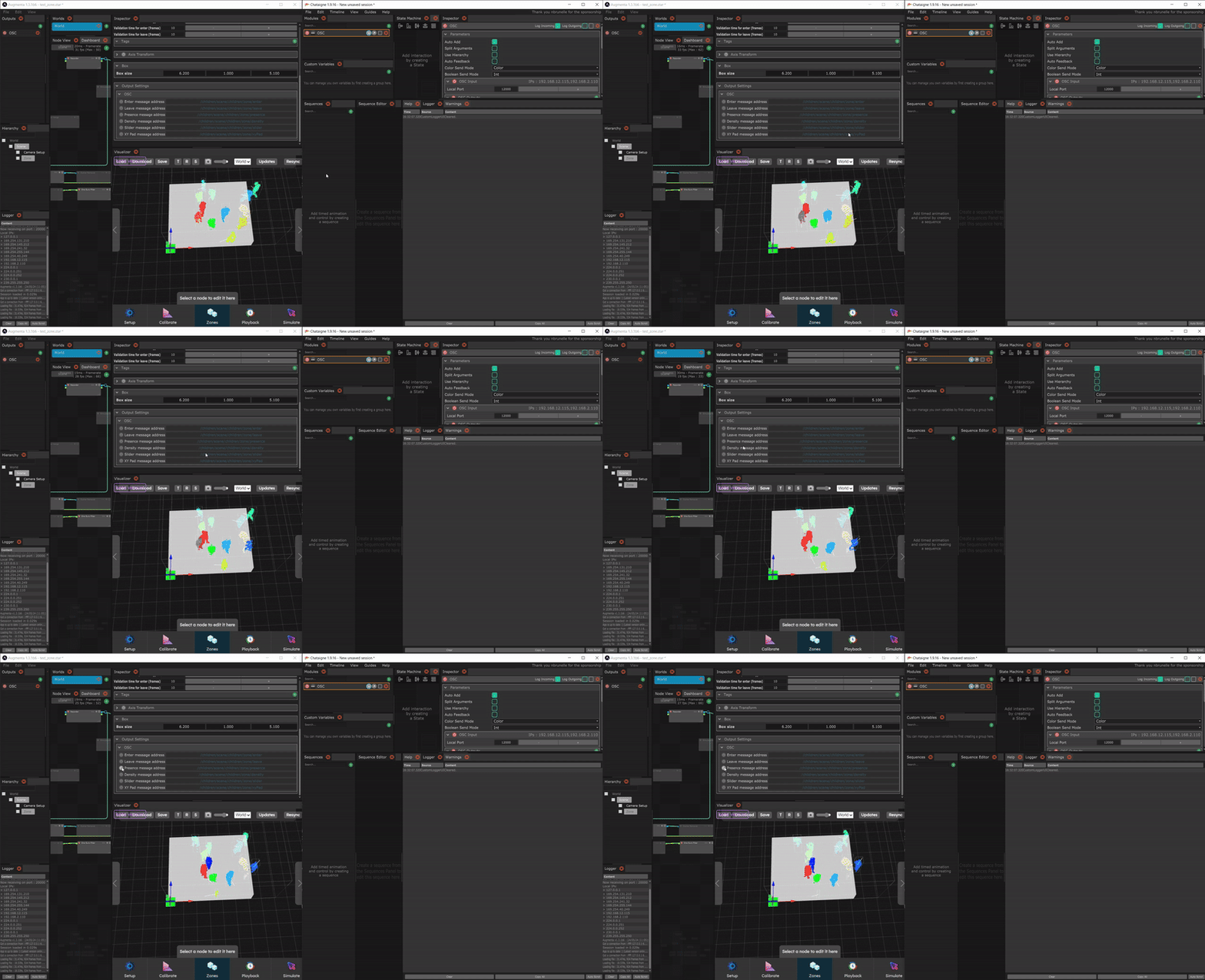
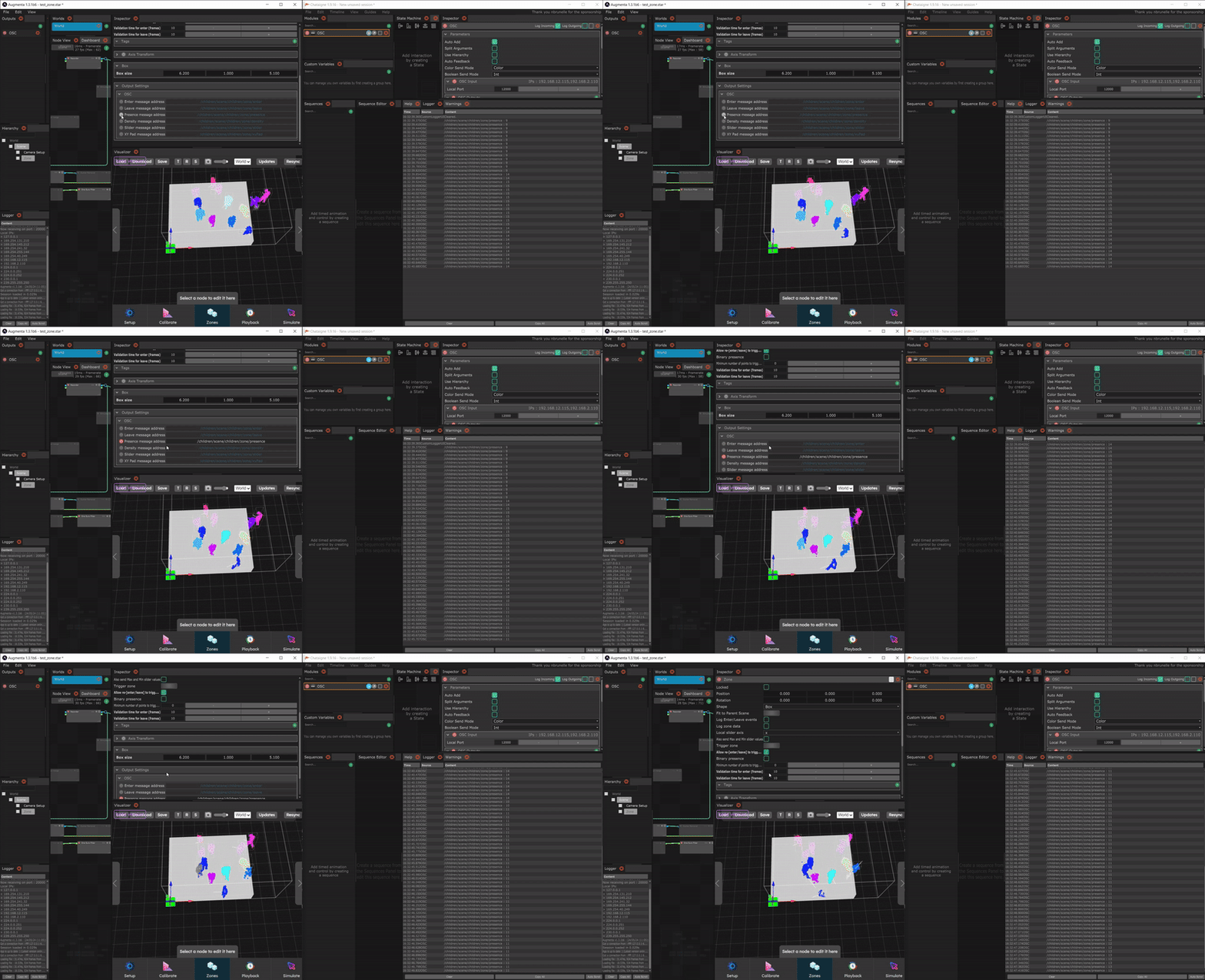
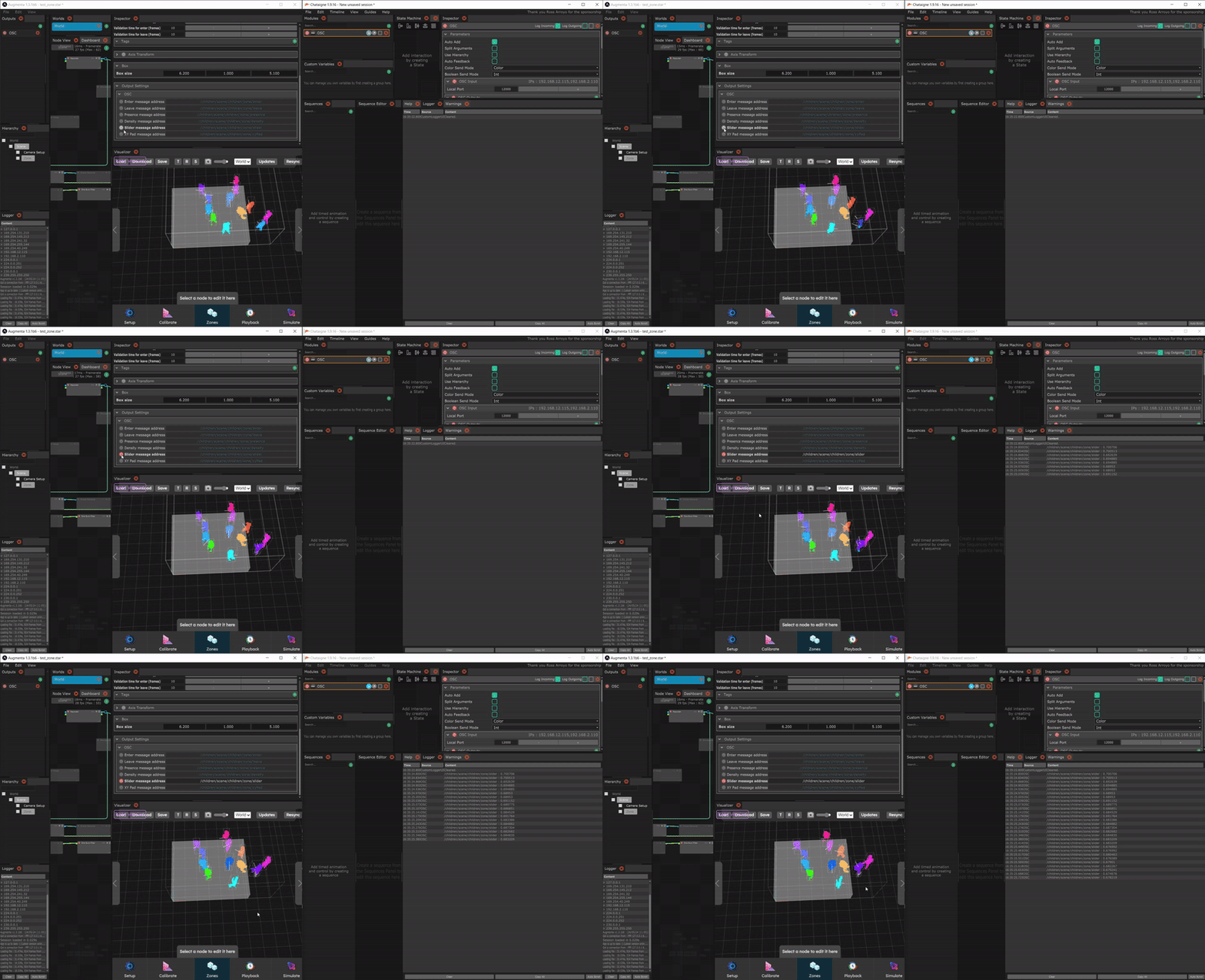
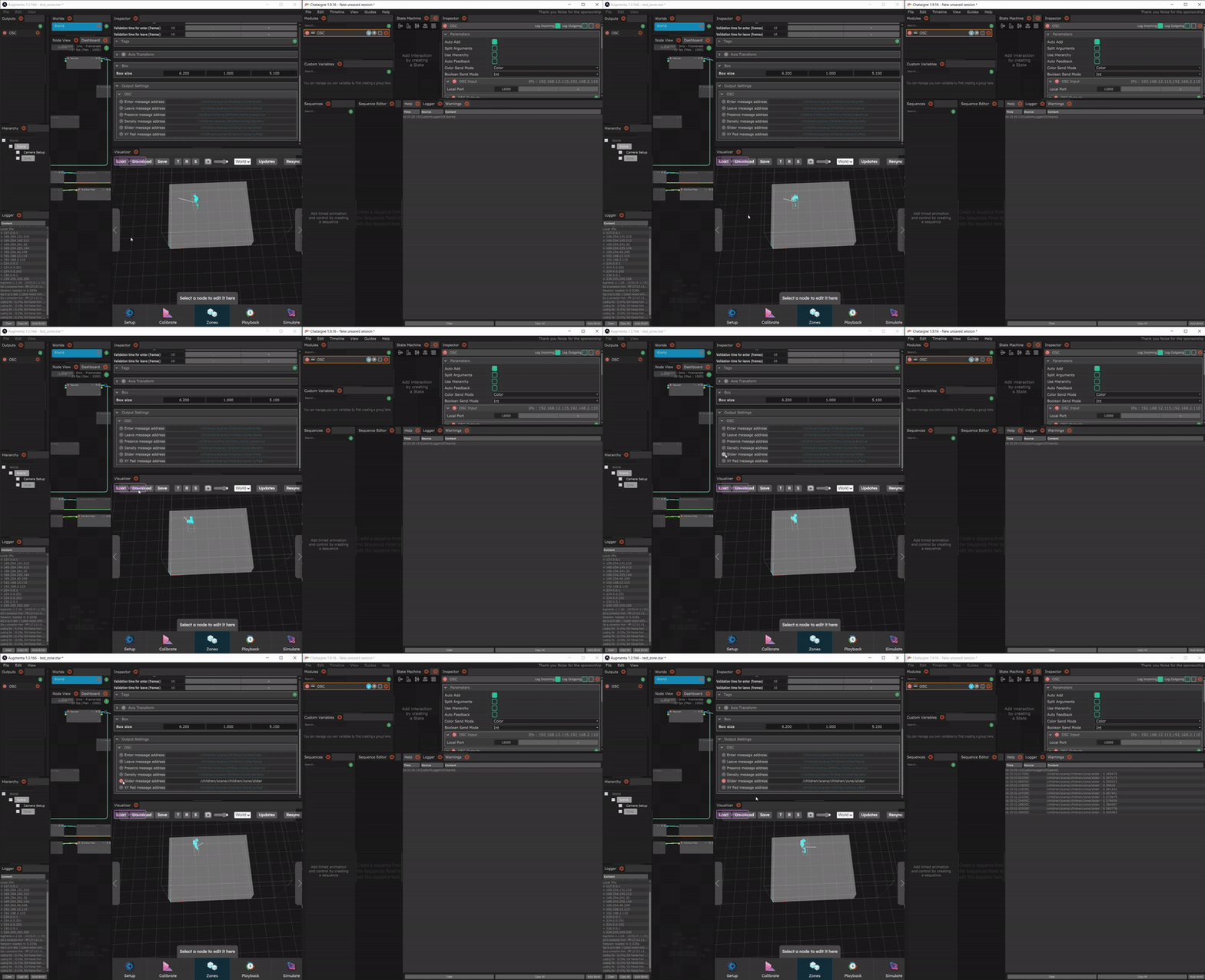
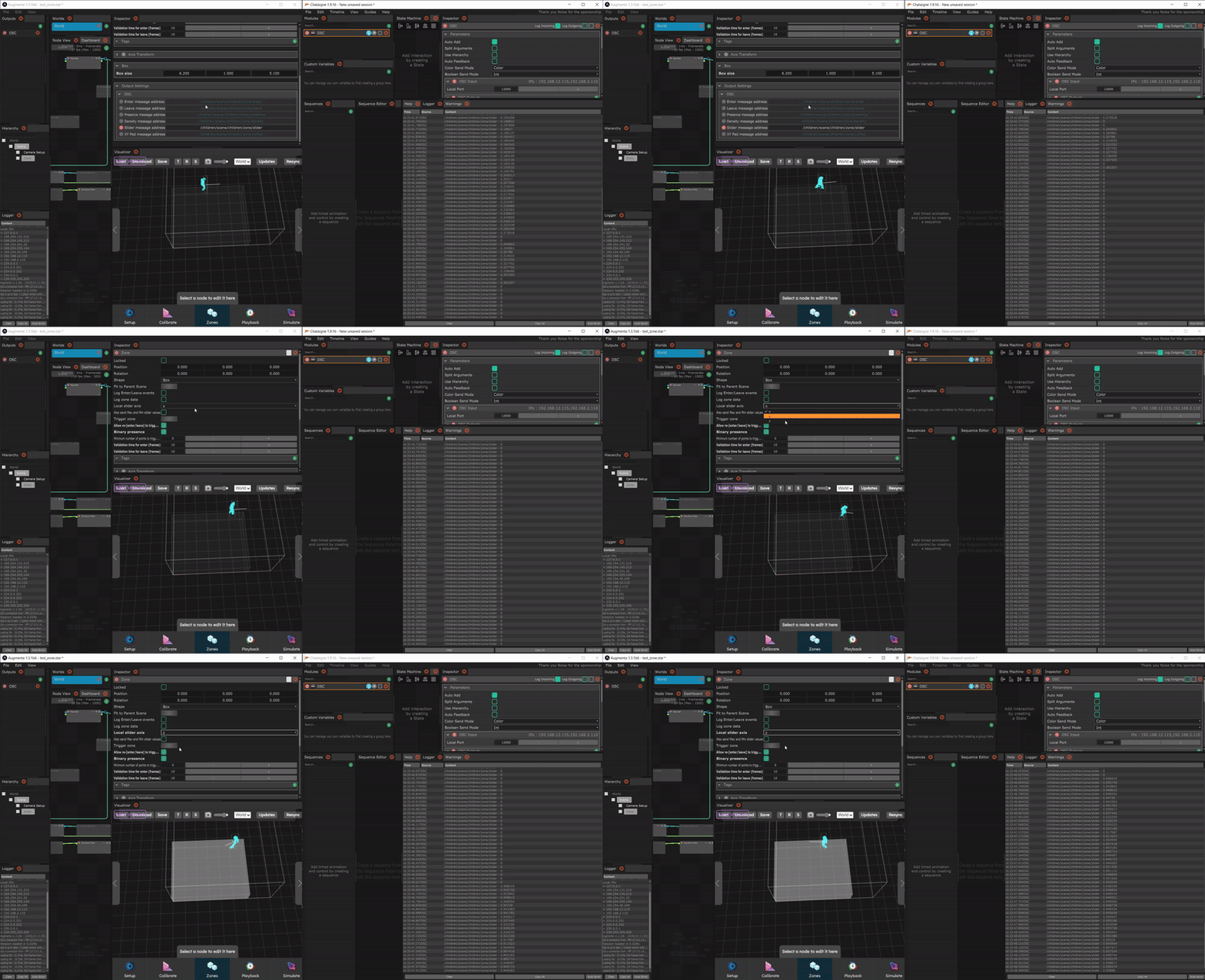
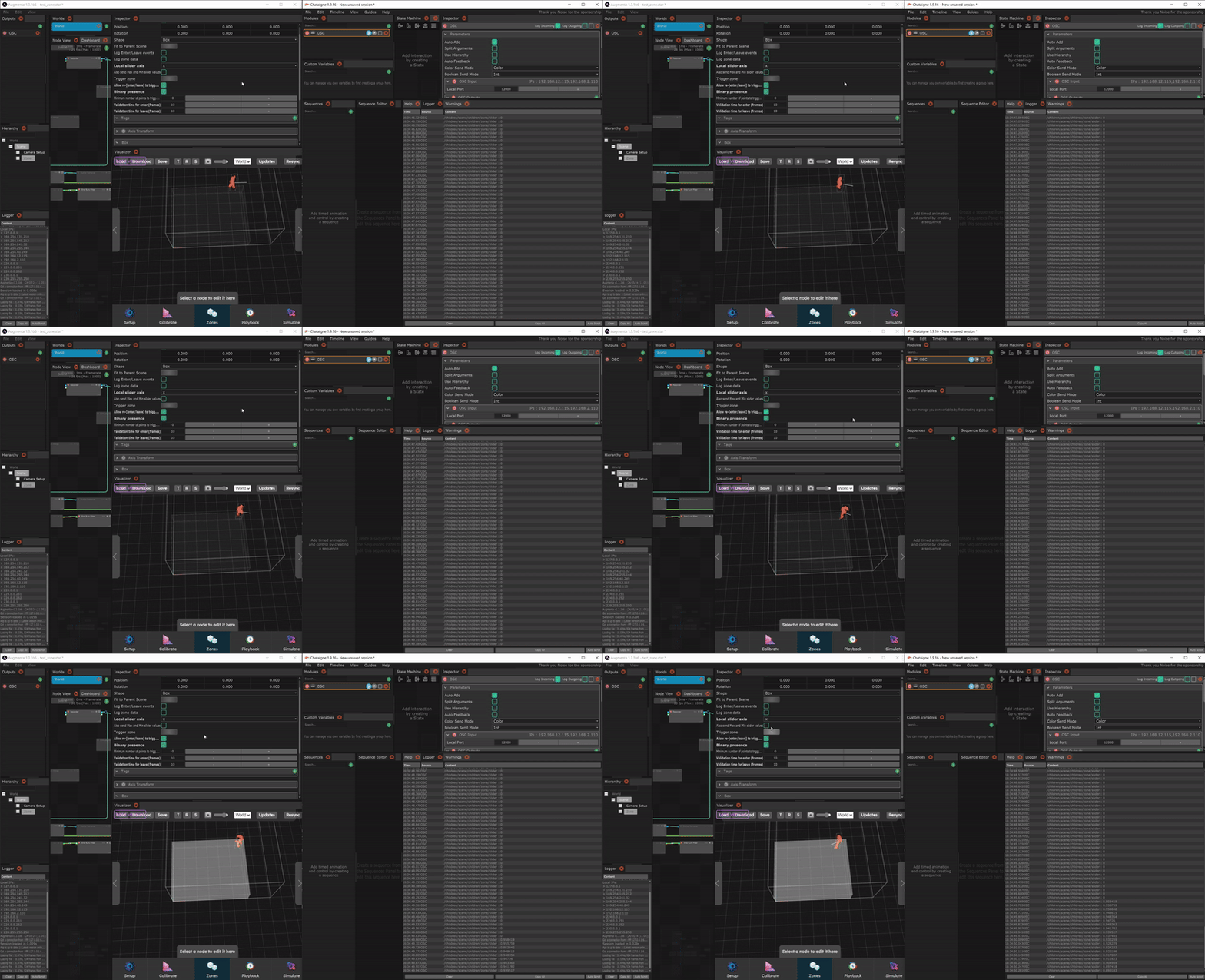
- Slider message: the average of the normalized positions on an axis of the people present in the zone is sent to each frame at the default address /children/scene/children/zone/slider. If only one person is present in the zone, its position (between 0 and 1) on an axis is sent. Several parameters are linked to this message.
- When a zone is created, the default axis along which the position is sent is x. This axis can be changed with the “Local slider axis” parameter.
- If the “Also send Max and Min slider values” parameter is checked 3 values are sent : the average, the maximum position of all persons and the minimum position of all persons.
- XY Pad message: the two averages of the normalized positions on x and z axis (floor plane) of the people present in the zone are sent to each frame at the default address /children/scene/children/zone/xyPad. If only one person is present in the zone, its position on x and z (between 0 and 1) on an axis are sent.
- If the “Also send Max and Min slider values” parameter is checked 6 values are sent : the 2 averages, the 2 maximum positions (on x and z axis) of all persons and the 2 minimum positions of all persons.
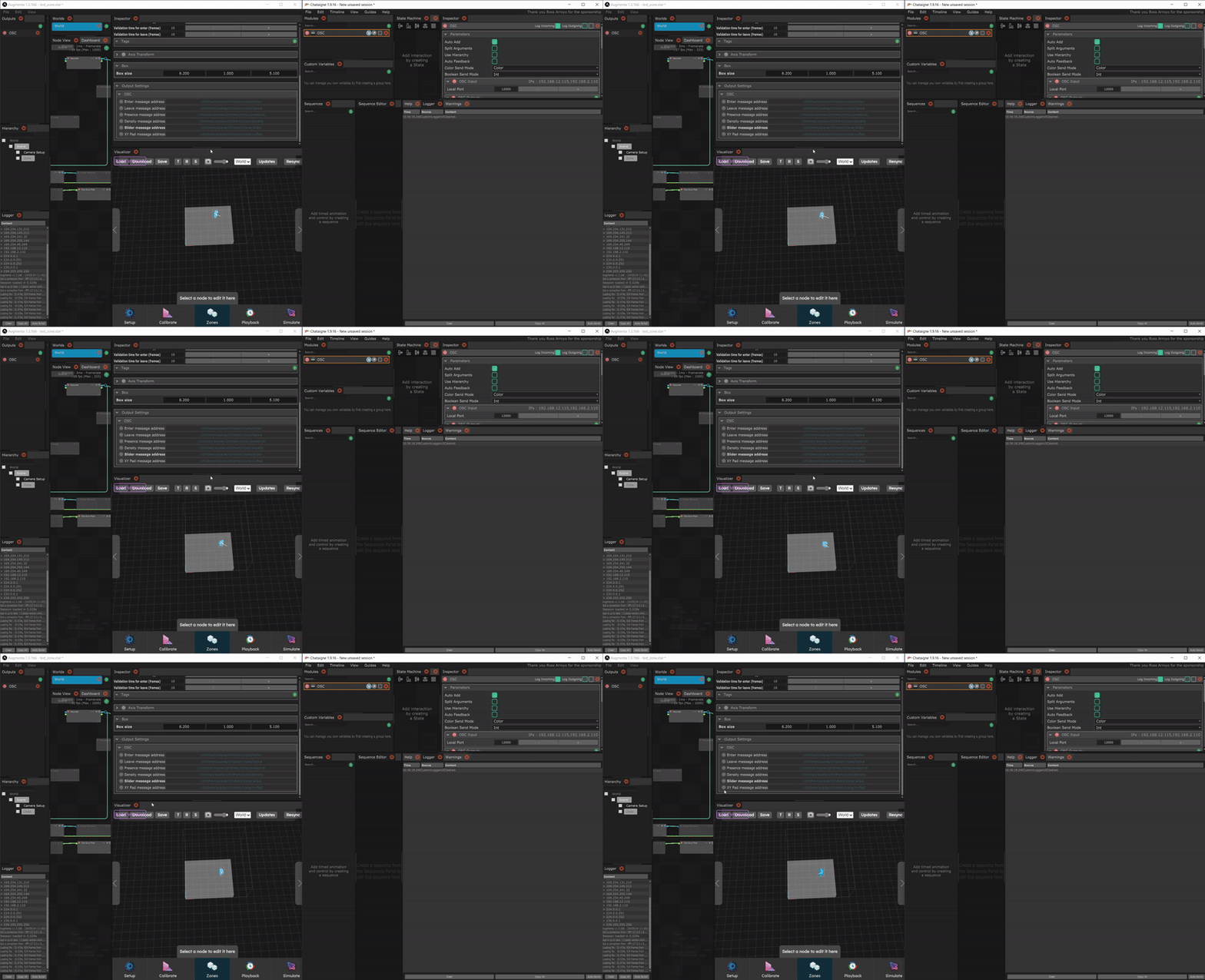
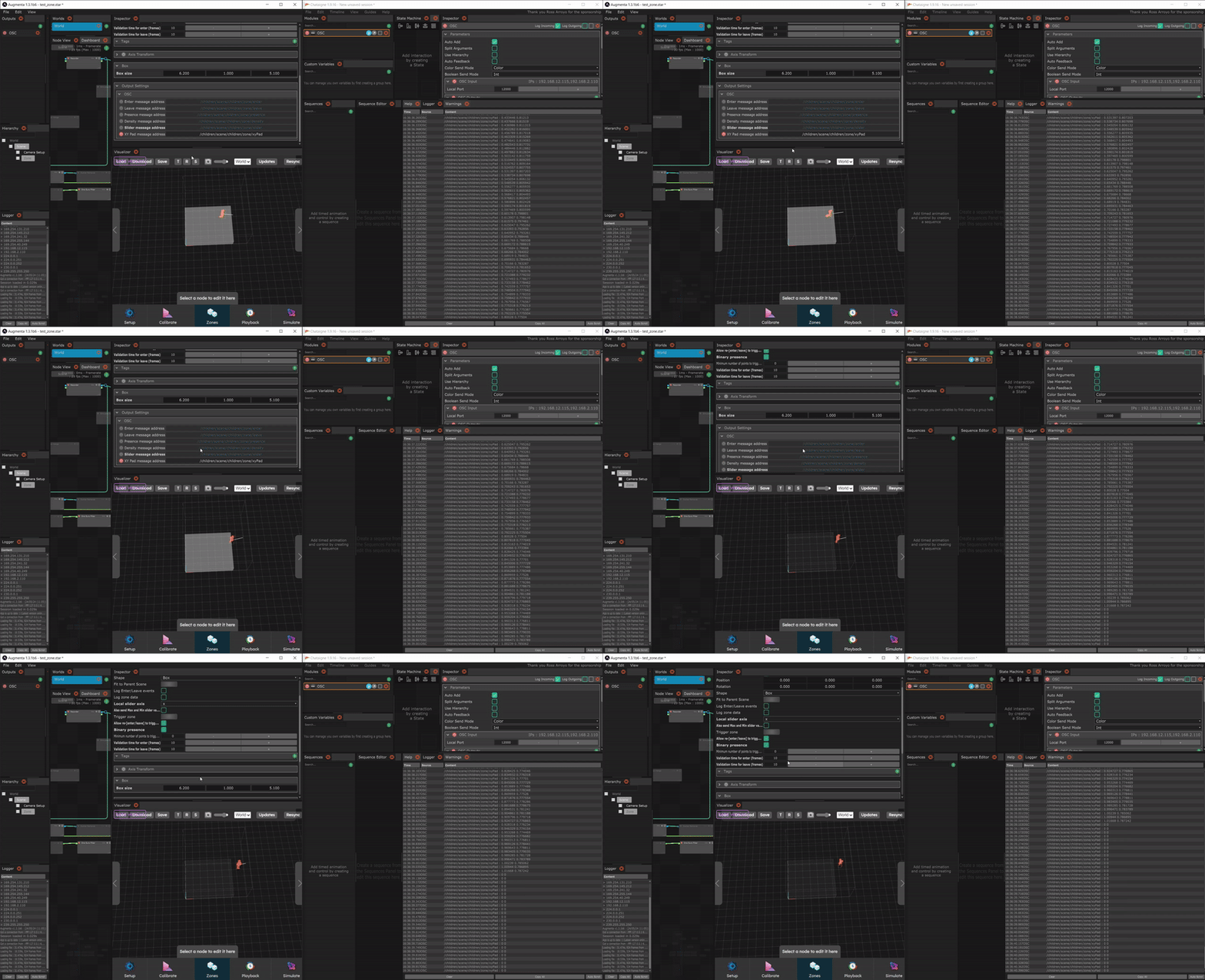
NB : Different events can be sent to different OSC outputs for the same zone. All OSC outputs that have been created are visible in the zone in the “Output Settings” container. Simply activate the events you wish to send to each OSC output.