
What is it ?
The main interface is the interface you should access for standard monitoring and configuration tasks.
It is a web interface, which makes it accessible both on the local computer or remotely from another computer with any browser (we recommend chrome).
More details here on how to access the interface  Augmenta server initialization
Augmenta server initialization 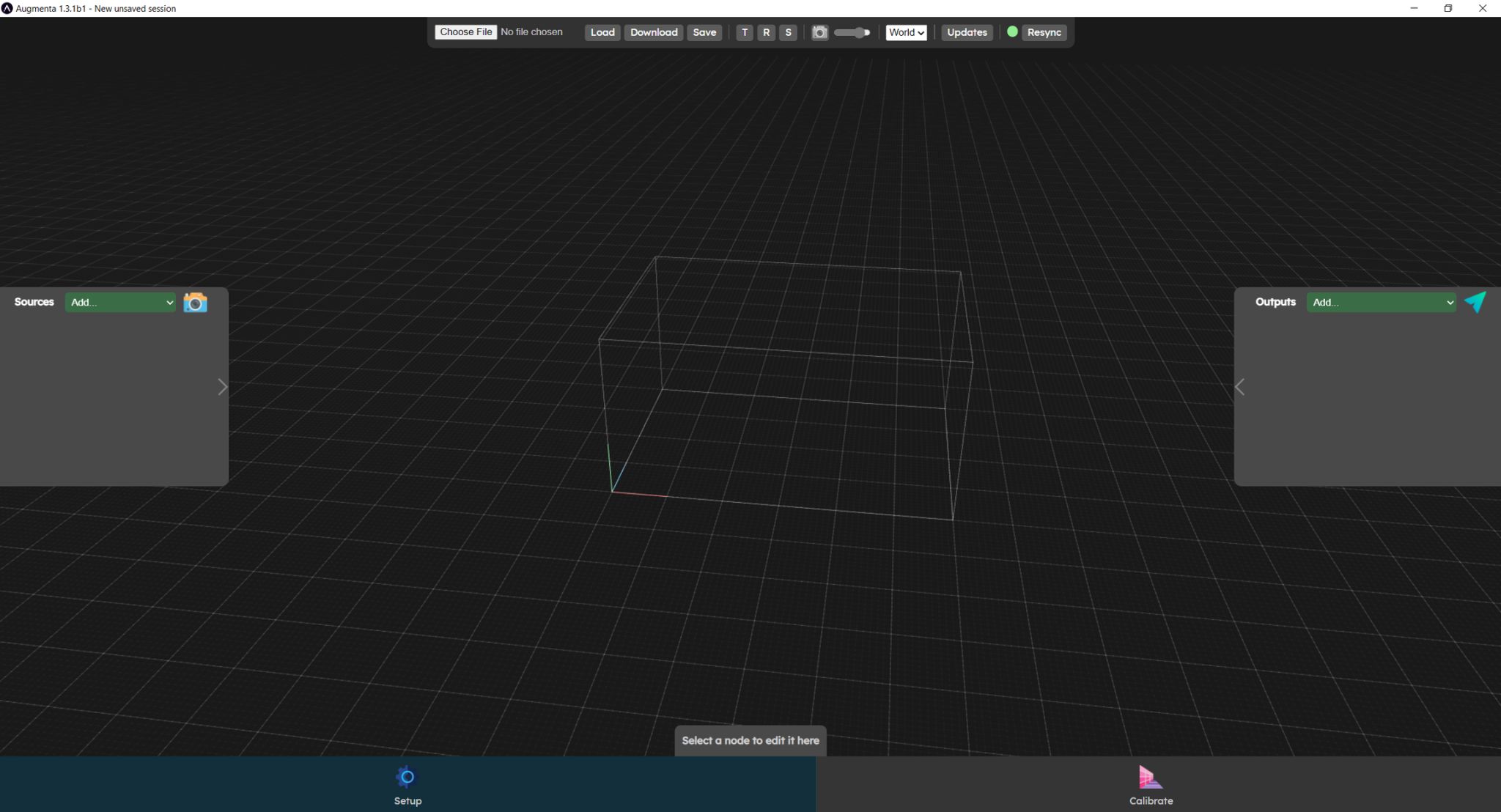
What is it for ?
The main interface will allow you to monitor what is going on in the scene. You can see above the people and objects in the scene. We can see their point clouds and bounding boxes. We can also see the scene bounding box, as well as the crop box and the zone.
The web interface also allow you to calibrate your space : add cameras and outputs (setup menu), position them in space, process point clouds and set clustering and tracking parameters (calibrate menu).
You can switch between the different views and configuration panels by clicking on the items in the bottom menu bar.
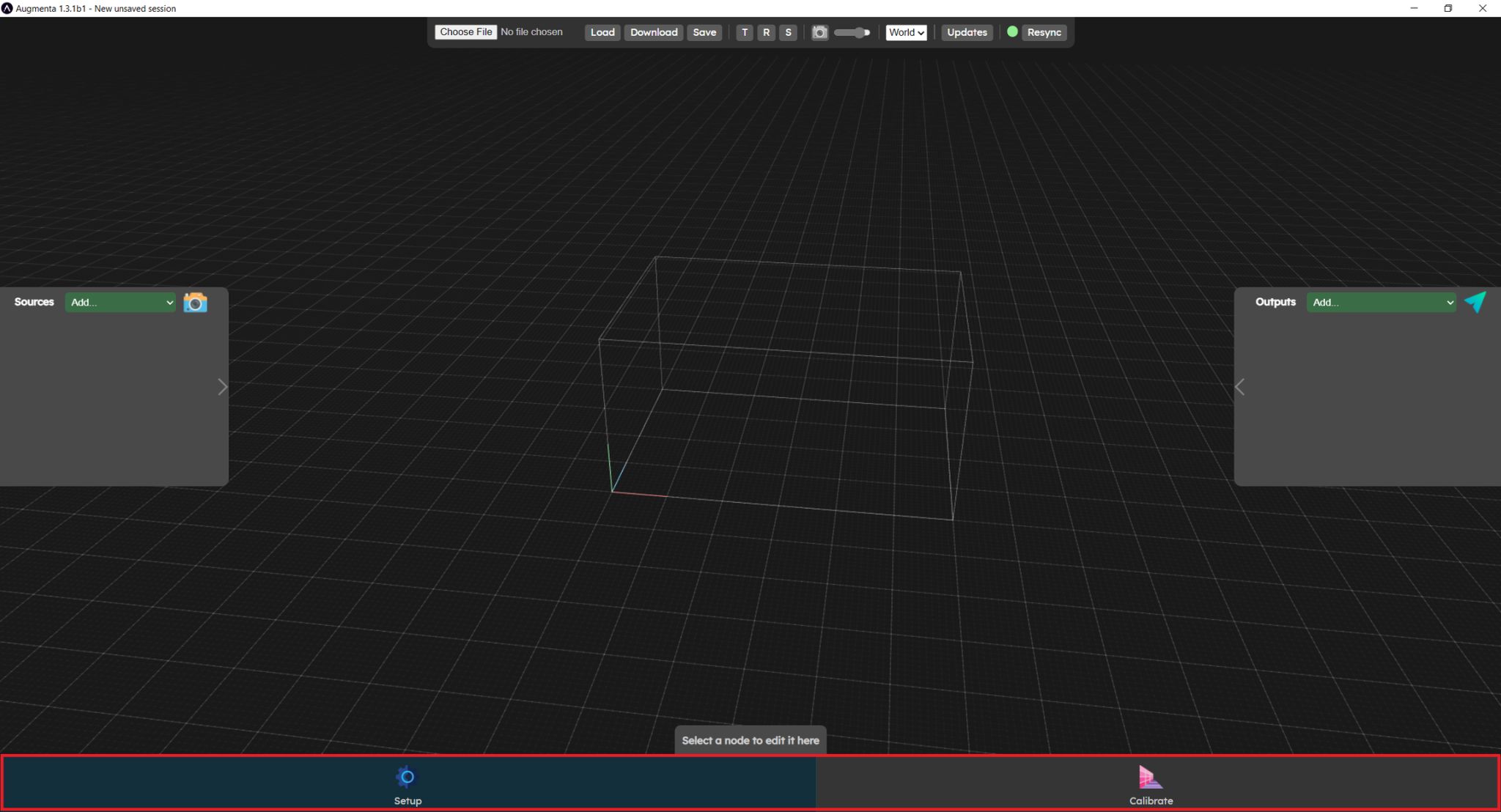
Menus overview
Various panels are available on the Augmenta mainUI. Each panels has a different function.
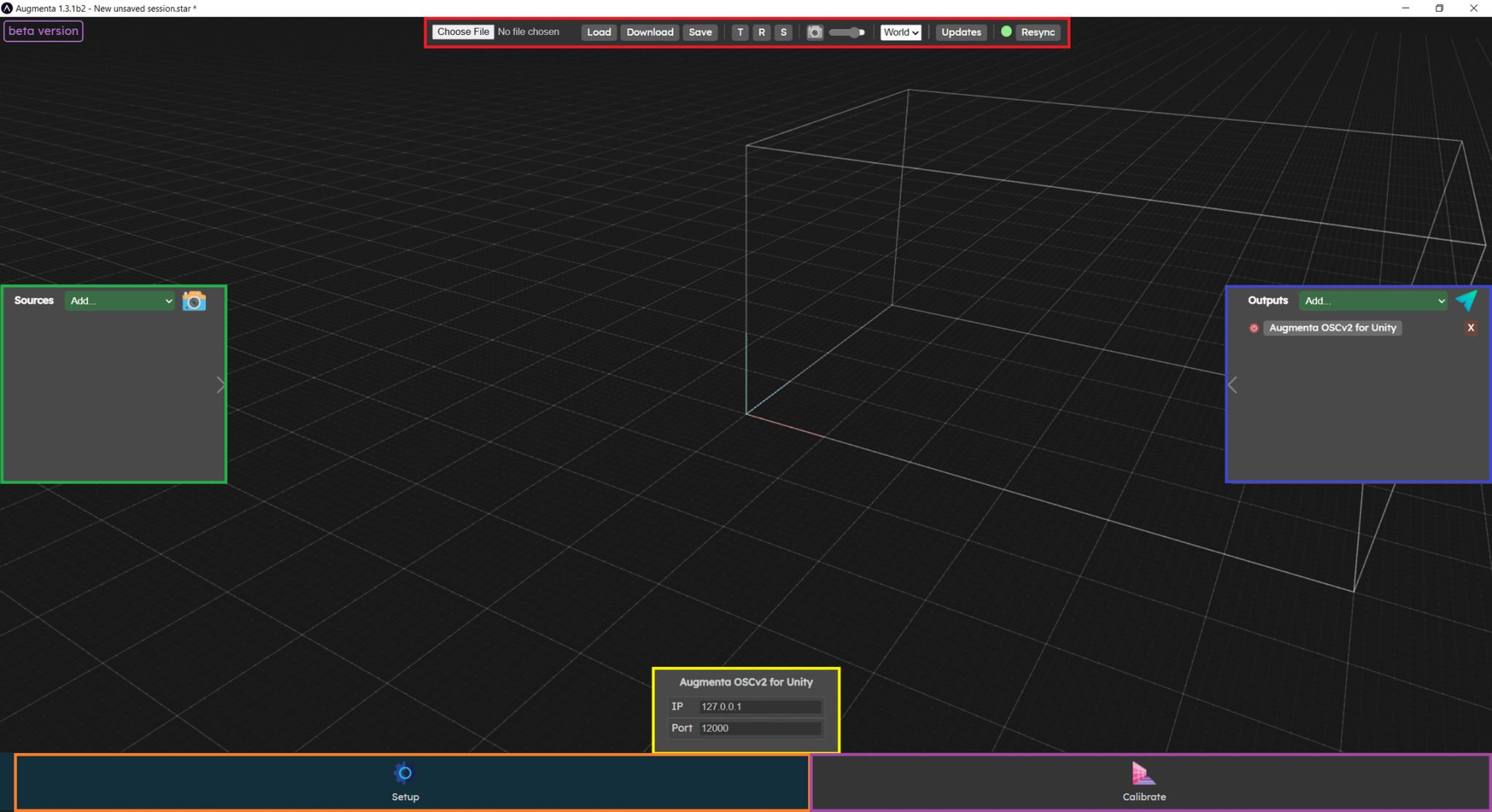
The red zone contains app-wide settings. Buttons to manage the currently loaded config files, manipulation options for the 3D editor, display settings and update are in this top bar.
The left, right and bottom panels are context menus, they will be populated differently depending on which menu is active.
In the bottom menu bar you will find 2 menu entries:
- The orange zone displays the source and output panels. This is where you can configure sources and outputs before starting calibration.
- The purple zone is the calibration menu. In this menu, the source and output panels will be replaced by other panels (which we'll see later) to make calibration easier.
Now let’s get to the  Top bar
Top bar