
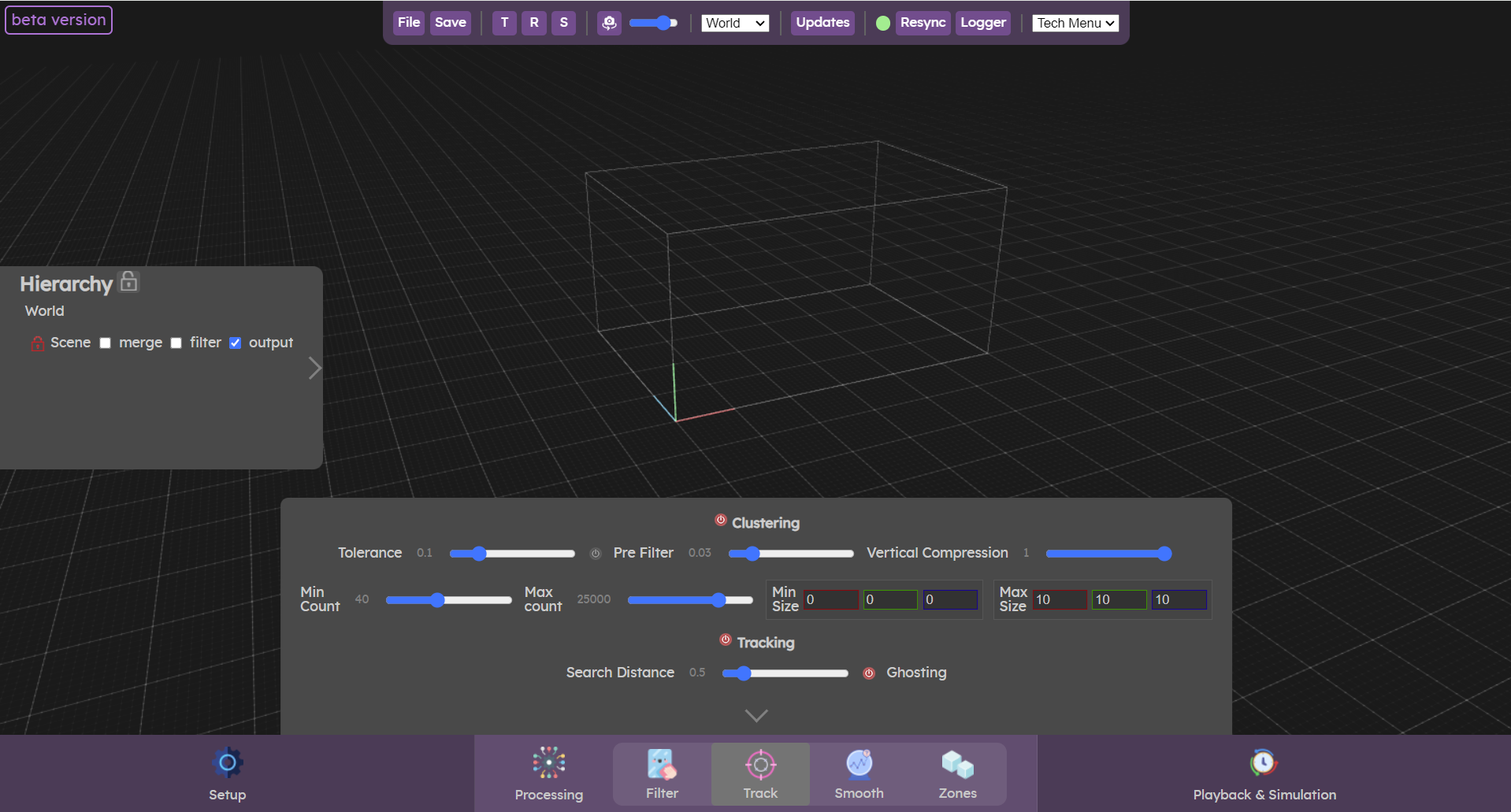
The Track menu is used to set clustering and tracking parameters.
- For clustering, you can set the minimum number of points you want to cluster and the maximum number of points, the min and max size of bounding boxes, etc., for fine tuning the clustering of the objects you want to track (people, fingers, etc.).
- For tracking, you can set the tracking distance and ghosting parameters, which allow you to identify each object, track it and assign it an identifier that will not change between processing frames as long as the object is present in the scene.
Clustering
Tolerance
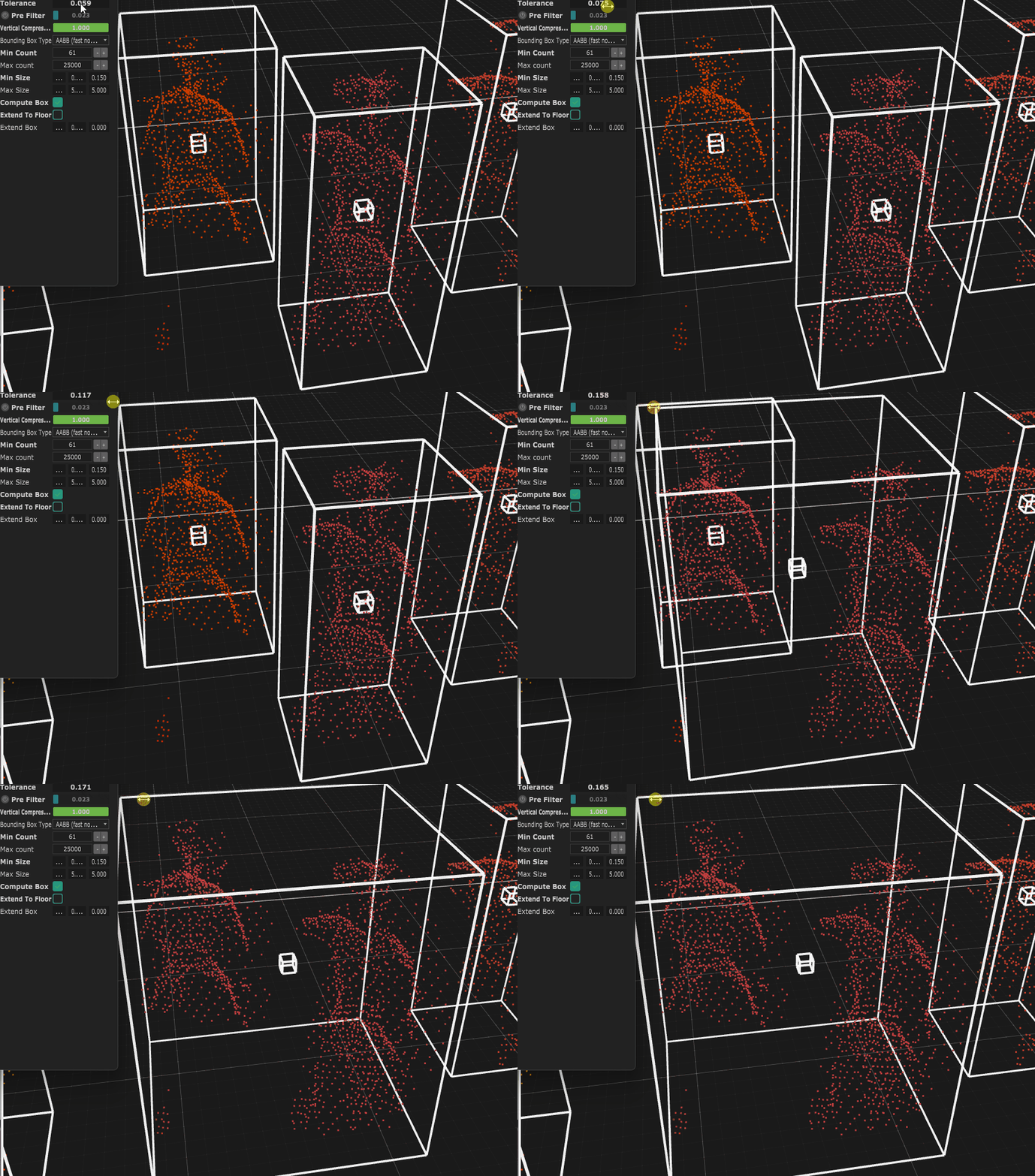
The tolerance parameter is the main clustering parameter. It is a distance in meters used by the clustering algorithm to specify how far it should fetch neighbouring points.
Increasing the tolerance means that you will attach points that are further away from the cloud, so if you notice body parts not taken into the cluster you might want to increase the tolerance.
You can see in the animation below that when increasing the tolerance, we might reach a point where two people standing by will be merged in a single cluster.
Pre Filter
If you already have set a voxel grid in the filter panel, you can leave this parameter disabled !
This Pre Filter parameter allow to speed up the clustering, by internally reducing the number of points in the pointcloud, in a similar way the Voxel Grid does.
The Pre Filter parameter is an offset value from the tolerance that is fed to the leaf size parameter of a Voxel Grid filter that is applied internally on the input point cloud. Simplifying the input cloud allows to reduce the computation cost of the cluster.
So the actual leaf size value of the Voxel Grid filter applied to the input cloud is tolerance − prefilter
The simplification is only done internally, once the bounding box of each cluster has been computed, all the input cloud points that are within the bounding box are added to the result. You will not lose in point cloud resolution for points within the bounding box.
Vertical compression
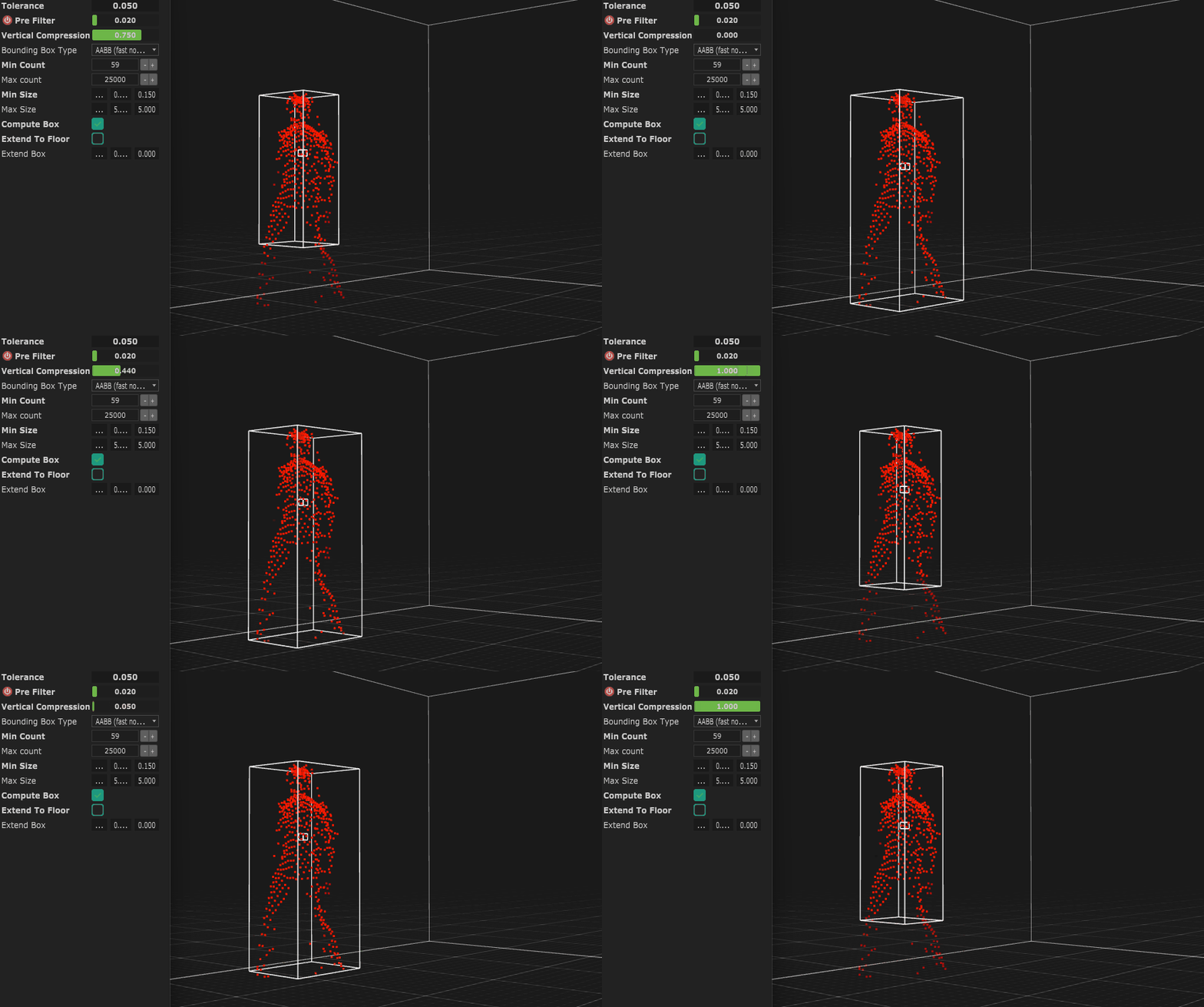
The vertical compression parameter will virtually squish the point cloud before doing the clustering. This means that points on the vertical axis are artificially getting closer. This allows to compensate for the sparser density we often have when the cameras are placed above people.
This is only done internally to identify which points belong to the cluster, the resulting point cloud of the cluster will have a normal scale on the vertical axis (as you can see in the animation below).
Tracking
The tracker keeps track of the clusters identities between frames.
Search distance
This parameter sets how far the tracker should look for matching cluster (this is a distance in meters). It will anyway take the closest cluster it finds to the last known position.
Ghosting
If a cluster disappears for a few frame (because it merged with another one, or was discarded by the clustering algorithm due to noise issues), we might want to give it back its identity when it reappears.
When enabled, the tracker will keep a ghost of a cluster that disappeared for a few seconds to re-attach the ghost ID to the cluster that reappears.
Video tutorial
More details can be found in this video
Now let’s check the  Smooth panel
Smooth panel