
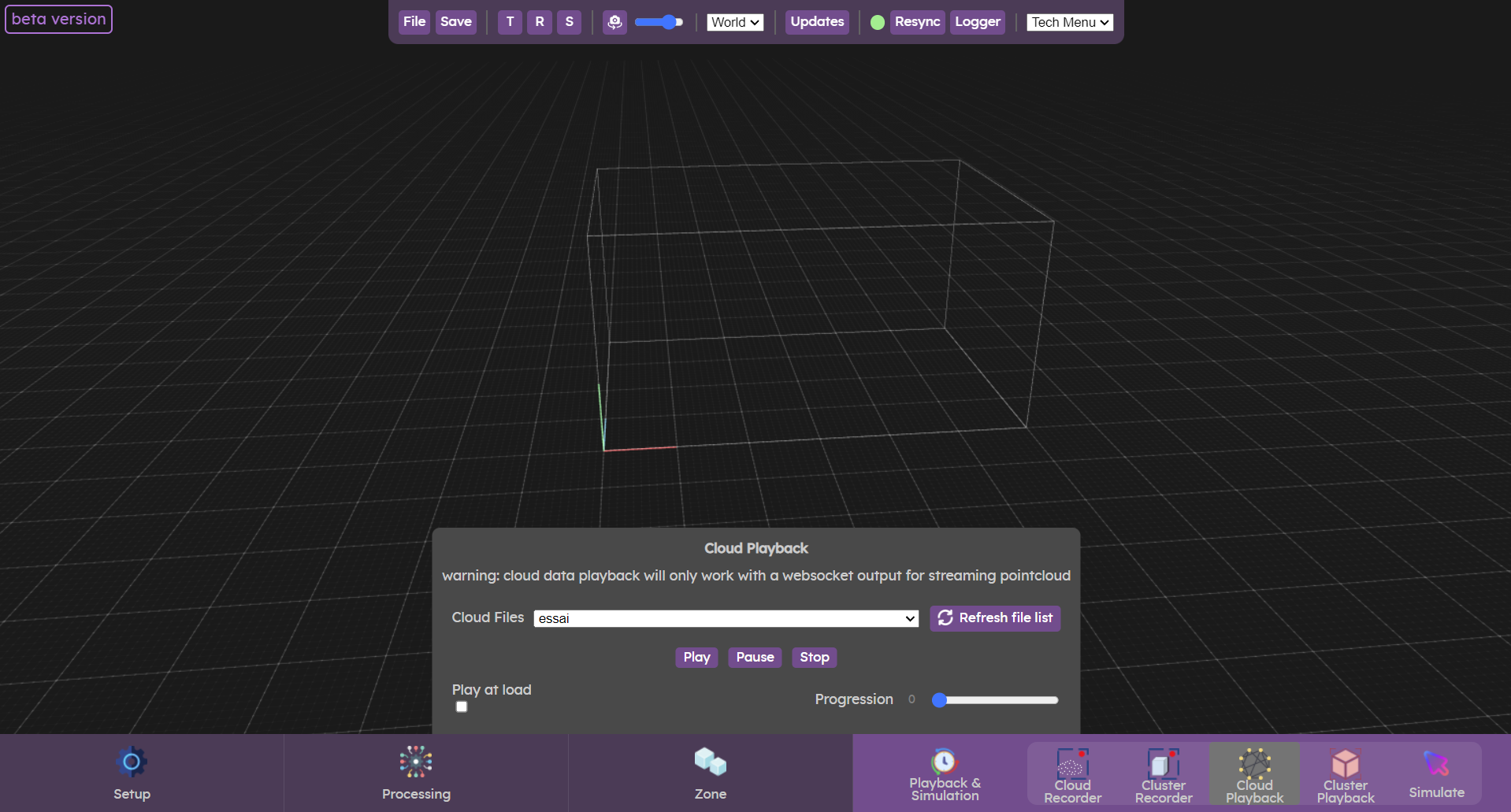
The cloud playback menu allows you to replay previously recorded point clouds or point clouds from the database.
Replaying a point cloud allows you to carry out tests without having access to cameras.
While a data set is being replayed, you can return to the processing menu ( Track) to track people or objects present in the cloud point. You can also set an output (
 Sources & Outputs) to receive the data in your creative software.
Track) to track people or objects present in the cloud point. You can also set an output (Sources & Outputs) to receive the data in your creative software.Playback a point cloud
To replay a data set, your .cloud file must be located in the Documents/Augmenta/records folder.
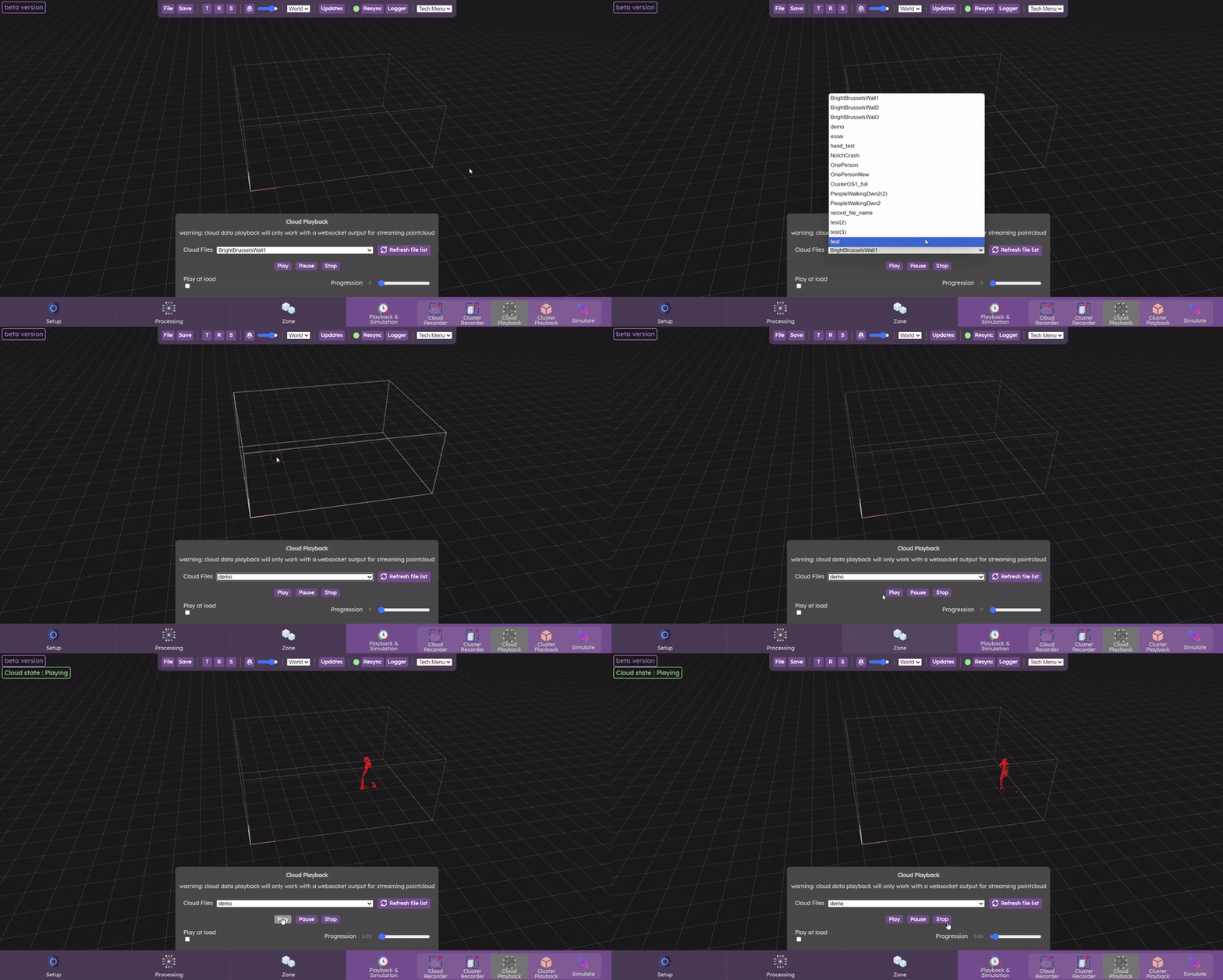
Select your file from the “Cloud Files” list. If it's not there, click on “Refresh file list”. If you still can't find it, your file may not be in the right folder (Documents/Augmenta/records).
Once you've selected your file, press play. When the point cloud is played, a green alert label appears in the top left-hand corner. You can now pause your recording. If you click on play again, the data set will continue where it left off.
The dataset is played in a loop, and you can monitor its progress using the progress parameter. Click on stop to stop playback.
Let’s check now the  Cluster Playback panel
Cluster Playback panel